
A solution requested for a use case requires that the scenario is initiated with project updates.
Which Workfront app module will start the scenario immediately?
Watch Events
Watch Record
Watch Field
Search
Understanding the Question:
The scenario must begin as soon as a project update occurs in Adobe Workfront.
The correct Workfront module should continuously monitor for specific changes (in this case, project updates) and trigger the scenario immediately.
Why Option A ("Watch Events") is Correct:
Watch Events Module: This module in Adobe Workfront Fusion is specifically designed to monitor events, such as updates to projects, tasks, or issues, and trigger scenarios as soon as those events occur.
Real-Time Triggering: The "Watch Events" module listens to the Workfront event stream and ensures the scenario starts immediately upon detecting relevant updates.
Example Use Case: Monitoring updates to a project’s status, such as changes in "Completion" or "Progress," to trigger notifications or integrations with other systems.
Why the Other Options are Incorrect:
Option B ("Watch Record"): This module monitors specific Workfront records (e.g., projects, tasks, issues) for new additions or modifications, but it does not initiate scenarios immediately when updates occur. It works better for periodic checks rather than real-time events.
Option C ("Watch Field"): This module monitors changes to specific fields within a Workfront object, but it is not designed for broader event monitoring like project updates. It is more suited for field-specific tracking.
Option D ("Search"): This module performs queries to find specific data in Workfront (e.g., searching for projects based on criteria), but it is not an event-driven module and does not automatically trigger scenarios.
Steps to Configure the Watch Events Module in Workfront Fusion:
In the Fusion scenario editor, add theWatch Eventsmodule as the first step in your scenario.
Configure the module:
Select Workfront Connection: Choose the authorized Workfront account.
Event Object: Specify the object type (e.g., Project, Task, Issue) to monitor.
Event Type: Select the type of event to watch, such as "Update" or "Change."
Save and activate the scenario.
How This Solves the Problem:
Using the Watch Events module ensures the scenario is event-driven and starts automatically when the desired project update occurs. This approach is both efficient and timely, meeting the requirement for immediate initiation.
References and Supporting Documentation:
Adobe Workfront Fusion Official Documentation: Watch Events Module
Workfront Community Forum: Use Cases for Watch Events
Which two features or modules can be used to create conditional or nested error handling when using Error Handling Directives? (Choose two.)
Text Parser
Filters
Workfront app
Routers
In Adobe Workfront Fusion, error handling directives are used to manage and respond to errors during scenario execution. These directives allow the implementation of conditional or nested error handling mechanisms, ensuring workflows can adapt and recover from unexpected issues efficiently. Among the features and modules provided by Fusion:
Filters:
Filters are essential components in Workfront Fusion. They allow you to define specific conditions to control the flow of data between modules.
They enable conditional processing by allowing or restricting the passage of data based on defined criteria, which is fundamental for creating dynamic and conditional workflows.
When used with error handling, filters can evaluate whether certain data meets criteria to determine alternative pathways, thus enabling conditional error handling.
Routers:
Routers split the execution of a scenario into multiple branches based on specific conditions.
Each branch can be configured to handle different error types or conditions, allowing nested error handling and custom error recovery paths.
They are particularly useful when you need to define distinct responses for various error cases within a single scenario.
Eliminated Options:
A. Text Parser: While text parsers process and extract data from strings, they are not directly involved in error handling within scenarios.
C. Workfront App: The Workfront app is primarily for interacting with Workfront features and functionalities, not directly related to error handling within Fusion scenarios.
References:
Adobe Workfront Fusion Documentation: Error Handling Directives Overview
Adobe Workfront Community: Filters and Routers in Conditional Logic Workflows
Experience League Documentation:https://experienceleague.adobe.com
Which two actions are best practices for making a Fusion scenario easier to read, share and understand? (Choose two.)
Naming all modules by providing short but relevant labels.
Insert Note Modules at the beginning of the scenario.
Add notes where applicable to clarify what is happening.
Attach the requirements document using the scenario settings.
Step by Step Comprehensive Detailed Explanation:
Best Practices for Scenario Clarity:
Workfront Fusion scenarios can become complex. Adopting practices that enhance readability, shareability, and understanding ensures the scenario can be maintained and used effectively by others.
Option Analysis:
A. Naming all modules by providing short but relevant labels:
Correct. Proper naming helps identify the function of each module at a glance. For example, instead of generic names like "Project Search," use "Search High Priority Projects."
This makes it easier to debug, share, and update the scenario.
B. Insert Note Modules at the beginning of the scenario:
Incorrect. While notes are useful, inserting a Note module at the beginning is not always necessary unless clarification is required for the initial step. Adding notes throughout the scenario (Option C) is more beneficial.
C. Add notes where applicable to clarify what is happening:
Correct. Adding comments or notes helps explain the purpose of certain steps, making the scenario easier to understand for collaborators or when revisiting it in the future.
D. Attach the requirements document using the scenario settings:
Incorrect. Attaching a requirements document might be useful for reference but does not directly contribute to scenario readability or understanding within the interface.
Implementation Tips:
Use descriptive names for modules that clearly indicate their purpose (e.g., "Update Project Status" instead of "Update Record").
Add comments or notes at decision points or complex mapping expressions to explain logic.
Given the array below, a user wants a comma-separated string of all stat names.
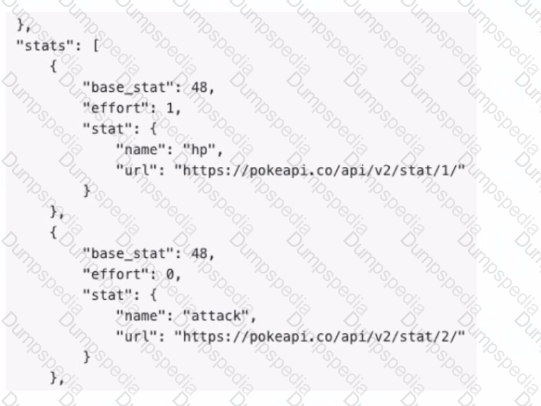
What is the correct expression?





Understanding the Requirement:
The input is an array containing objects, and the goal is to extract all the stat.name values into acomma-separated string.
Example Input:
[
{
"base_stat": 48,
"effort": 1,
"stat": {
"name": "hp",
"url": "https://pokeapi.co/api/v2/stat/1/"
}
},
{
"base_stat": 48,
"effort": 0,
"stat": {
"name": "attack",
"url": "https://pokeapi.co/api/v2/stat/2/"
}
}
]
Example Output:"hp, attack"
Why Option B is Correct:
The expressionjoin(map(2.data: stats[]; stats.stat.name); ", "):
map: Iterates through each object in the array (2.data: stats[]) and extracts the stat.name field.
join: Combines the extracted values into a single string, separated by a comma and space (", ").
Breaking it down:
map(2.data: stats[]; stats.stat.name) → Creates an array of names: ["hp", "attack"].
join(...; ", ") → Converts the array into the string "hp, attack".
Why the Other Options are Incorrect:
Option A: join(2.data: stats[]; stat.name; ", ")
This syntax is incorrect because it attempts to directly access stat.name within the join function without first mapping the values.
Option C: join(map(2.data: stats[]; stat.name); ", ")
The mapping references stat.name directly but does not account for the nested structure (stats.stat.name).
Option D: join(flatten(2.data: stats[]); ", ")
The flatten function is unnecessary here as the data is already structured. It would not properly extract the stat.name values.
Steps to Implement in Workfront Fusion:
Add aMapping/Transformation Module.
Use the join(map(...)) function as described to transform the input array into a comma-separated string.
Test the output to ensure it correctly generates the desired format.
How This Solves the Problem:
The map function ensures the proper extraction of nested stat.name values.
The join function combines these values into the desired format efficiently.
References and Supporting Documentation:
Adobe Workfront Fusion Functions Documentation
Workfront Community: Using Map and Join Functions
The combination of map and join ensures that the stat names are extracted and formatted into a single comma-separated string, as required.

This scenario shows a 1 in the bundle inspector for the Tasks module and a 23 in the bundle inspector for the Project module.
What does the number in the bundle inspector represent?
The number of seconds to process the module
The number of output bundles
The number of operations performed
The number of times a module has been edited
Step by Step Comprehensive Detailed Explanation:
Understanding the Scenario:
In Workfront Fusion, each module in a scenario processes data and generates bundles as output.
The bundle inspector shows the number of bundles (data packets) output by a module during an execution.
Option Analysis:
A. The number of seconds to process the module:
This is incorrect. The number in the bundle inspector does not indicate time but rather the count of output bundles. Processing time is not displayed in this way.
B. The number of output bundles:
Correct. The number displayed in the bundle inspector represents how many bundles the module output during the execution. In the given example, the "Tasks" module outputs1 bundle, and the "Project" module outputs23 bundles.
C. The number of operations performed:
This is incorrect. The bundle inspector displays the number of output bundles, not operations. While operations may be a result of processing bundles, they are tracked separately in Fusion reports.
D. The number of times a module has been edited:
This is incorrect. Editing history is not displayed in the bundle inspector.
Explanation of Bundle Inspector:
Each module processes input data and generates output bundles.
These numbers in the bundle inspector indicate how many bundles the module is outputting in the current run of the scenario.
For example, if a "Search" module retrieves 23 records, the bundle inspector will show 23, meaning the module outputs 23 bundles.
Context of the Given Image:
The "Tasks" module processes and outputs 1 bundle.
The "Project" module processes 1 input bundle (from "Tasks") and outputs 23 bundles.
References:This information is consistent with Workfront Fusion documentation, which explains the bundle inspector's function during scenario execution. The bundle inspector is used to monitor data processing and ensure expected outputs from modules.
A Fusion scenario is making too many requests to a third-party API, which returns a 429 "Too Many Requests" error Which technique reduces the number of API requests?
Using a Search module to get record IDs and then read those IDs with a Read Record module to pull other data
Moving Search and GET modules earlier in the scenario instead of pulling more data about the same record multiple times
Adding a Retry error handling directive to the Fusion scenario
Understanding the Issue:
The scenario is making too many API requests, causing the third-party API to return a429 "Too Many Requests"error, which indicates that the rate limit has been exceeded.
The solution needs to reduce unnecessary or redundant API requests to prevent hitting the API limits.
Why Option B is Correct:
Avoid Redundant Requests:
PlacingSearchandGETmodules earlier in the scenario ensures that all required data is retrieved in one batch or in fewer requests, rather than repeatedly querying the same record later in the scenario.
This technique reduces the overall number of API requests sent to the third-party system.
Efficient Data Flow:
By structuring the scenario to retrieve all necessary data at the beginning, subsequent modules can reuse the retrieved data instead of making additional API calls.
Why the Other Options are Incorrect:
Option A ("Using a Search module and then a Read Record module"):
This approach can increase API requests, as theSearch moduleretrieves record IDs, and theRead Record modulemakes separate API requests for each record. This often results in more requests than necessary.
Option C ("Adding a Retry error handling directive"):
Adding aRetry directivedoes not reduce the number of requests. Instead, it retries failed requests, which could worsen the problem by increasing API traffic.
Best Practices to Reduce API Requests:
Consolidate data retrieval into a single module or a smaller number of requests.
Use caching or intermediate storage (like Fusion Data Stores) to avoid re-fetching the same data.
Limit the scope of Search modules by using filters or pagination to process smaller, relevant data sets.
References and Supporting Documentation:
Adobe Workfront Fusion Best Practices: Managing API Rate Limits
Workfront Community: Error 429 Solutions
A Fusion user is trying to get a Google Slide presentation to connect to projects in Workfront. Each time the user runs the scenario, this error message appears:
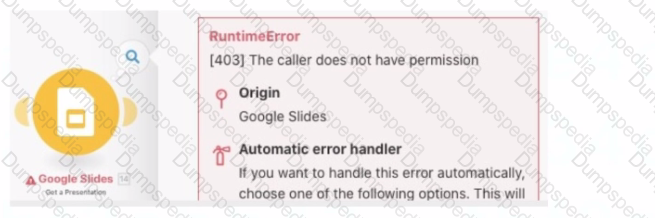
What action should the user take to resolve the error message?
Reauthorize their Google connection
Update Google sharing permissions for the document
Contact Workfront Support to troubleshoot the root cause
Search the Google status site to determine the cause
Step by Step Comprehensive Detailed Explanation:
Understanding the Error:
The error message [403] The caller does not have permission is aGoogle API permission error.
It typically indicates that the user or application does not have the required access rights to perform the requested action on the Google Slide presentation.
Option Analysis:
A. Reauthorize their Google connection:
This step might be necessary if the user's credentials or token have expired, but this is not the primary issue here since the error specifically states apermission problem.
B. Update Google sharing permissions for the document:
Correct. The error suggests that the Google Slide document has not been shared with the user or service account being used in Fusion. Updating the sharing settings to grant proper permissions (e.g., "Editor" or "Viewer" access) will resolve the issue.
C. Contact Workfront Support to troubleshoot the root cause:
While Workfront Support can help with Fusion-related issues, this error originates from Google and is unrelated to Workfront's systems.
D. Search the Google status site to determine the cause:
The Google status site is useful for identifying system-wide outages, but this is a user-specific permission issue, not a Google platform-wide problem.
Steps to Resolve:
Open the Google Slide presentation.
Update the sharing permissions:
Grant access to the Google account or service account being used in Fusion.
Ensure the account has at leastEditoror appropriate access rights.
Save the changes and rerun the Fusion scenario.
Why Updating Permissions is Best:
This action directly addresses the root cause of the error, which is inadequate access rights.
Once permissions are updated, Fusion will be able to connect to and manipulate the Google Slide document as intended.
References:The [403] The caller does not have permission error is documented in Google API troubleshooting guides, which recommend verifying and updating document sharing settings for resolving access issues.
A custom API call to a web service is used inside of a high volume iteration. The module that calls the web service sometimes returns an error - 429: Too many requests.
Which two actions may be used to address this error? (Choose two.)
Add a sleep module just prior to the module generating the error
Use an ignore directive on the module generating the error
Add a module to test the service for errors
Use a break directive on the module generating the error
When encountering the error429: Too many requests, which indicates the web service is being overwhelmed by requests, the following actions can help:
A. Add a Sleep Module:
Adding aSleepmodule introduces a delay between iterations, reducing the frequency of API calls.
By slowing down the rate of requests, you avoid hitting the rate limits of the web service, thus reducing the chances of receiving a 429 error.
This approach is useful for managing high-volume iterations without overloading the external service.
C. Add a Module to Test the Service for Errors:
Adding a module to test the service's response before making a call can help prevent the 429 error by checking if the service is ready to handle requests.
This preemptive check allows the scenario to conditionally execute, ensuring that it doesn't overwhelm the service and respects the API rate limits.
Why Not Other Options?
B. Use an Ignore Directive: Ignoring errors can be risky because it would cause the scenario to ignore 429 errors, possibly leading to failed API calls that are not addressed. Ignoring an error doesn’t solve the issue of too many requests being sent to the service.
D. Use a Break Directive: TheBreakdirective would stop the execution, which is counterproductive when trying to resolve the issue by reducing the rate of requests. It would not address the root cause of too many requests.
References:
Adobe Workfront Fusion Documentation: Handling API Rate Limiting with Sleep and Error Handling
Experience League Community: Managing Web Service Errors in High-Volume Iterations
A Fusion Developer receives frequent notifications that a specific Scenario has been stopped. Upon investigation, the developer notes that there is nothing wrong with the data or process in the scenario, but that the error always occurs on a specific module that calls a third-party system. The error recorded is consistently a service unavailable error, particularly during times of high network traffic to the target system.
Which action should the Fusion Developer take to reduce the number of times the scenario is automatically stopped by Fusion?
Update the Scenario settings to automatically retry failed executions.
Update the Module settings to automatically ignore failed executions.
Add an error handler to the Module and select a Break directive.
Add an additional route after the failing module with a repeater to retry errors.
In this scenario, the error consistently arises due to the unavailability of a third-party service during high traffic times. This is a temporary issue and does not indicate a problem with the data or process. The recommended approach in such cases is to configure the scenario to retry failed executions:
Update Scenario Settings:
In Workfront Fusion, you can configure scenarios to automatically retry a failed execution.
This option ensures that temporary issues, like service unavailability, are retried after a delay, reducing the chances of the scenario being stopped permanently.
This is particularly useful when dealing with network traffic spikes or third-party API throttling.
Why Not Other Options?
B. Update the Module settings to automatically ignore failed executions: Ignoring failed executions would cause incomplete or incorrect data to flow through the scenario, leading to potential downstream issues.
C. Add an error handler to the Module and select a Break directive: While error handlers are useful, the Break directive stops the scenario from processing further, which is not ideal for a temporary issue.
D. Add an additional route after the failing module with a repeater: Adding a repeater increases complexity and is unnecessary when the retry option is already available in scenario settings.
References:
Adobe Workfront Fusion Documentation: Scenario Settings and Error Handling
Experience League Community: Handling API Rate Limits and Errors in Workfront Fusion
Which action makes it possible to see the exact API request and the response a module executes?
Using the Bundle Inspector
Using the execution history
Using the Fusion DevTool scenario debugger
Using the Fusion DevTool error evaluator
Understanding the Requirement:
The user needs to view the exactAPI requestand the correspondingresponsea module executes in Adobe Workfront Fusion.
This is critical for debugging, troubleshooting, or validating API operations within scenarios.
Why Option B is Correct:
Execution History:
Theexecution historylogs detailed information about every module that runs in a scenario.
It provides access to theAPI requestsent, including the headers, parameters, and body.
It also displays theAPI responsereceived, including HTTP status codes, returned data, and error messages (if applicable).
This feature is indispensable for debugging and verifying the behavior of modules.
Why the Other Options are Incorrect:
Option A ("Using the Bundle Inspector"):
The Bundle Inspector provides a view of processed data bundles but does not include API request/response details.
Option C ("Using the Fusion DevTool scenario debugger"):
Fusion does not have a specific "DevTool debugger." The execution history serves this purpose.
Option D ("Using the Fusion DevTool error evaluator"):
While error logs help evaluate issues, they do not directly show the API request/response unless an error occurs. Execution history is a more comprehensive source of this data.
Steps to View Execution History:
Run the scenario or inspect a previously executed scenario.
Navigate to theExecution Historytab for the scenario.
Select a specific module to view itsdetails.
Inspect theAPI request and response, which includes all relevant parameters and data.
References and Supporting Documentation:
Adobe Workfront Fusion Documentation: Execution History
Workfront Community: Debugging with Execution History
A Fusion user is developing a scenario. The first half of the scenario needs to be tested for consistency. No additional actions are to be executed.
Which control module is required to disable the execution of subsequent modules?
Router
Sleep
Ignore
Break
Understanding the Requirement:
The user wants to test the first half of the scenario for consistency without executing the remaining modules.
This requires halting further execution after a specific point in the scenario.
Why Option D ("Break") is Correct:
TheBreakmodule is a flow control module in Adobe Workfront Fusion that stops the execution of all subsequent modules in the scenario.
It is specifically designed for scenarios where you want to terminate execution after testing or processing a portion of the flow.
Example Use Case: After ensuring the first set of modules processes data correctly, the Break module prevents the execution of later modules to avoid unintended actions or changes.
Why the Other Options are Incorrect:
Option A ("Router"):
The Router splits the execution flow into multiple branches but does not stop the execution of subsequent modules.
Option B ("Sleep"):
The Sleep module pauses execution for a specified time but does not disable subsequent modules permanently.
Option C ("Ignore"):
There is no "Ignore" module in Workfront Fusion.
Steps to Use the Break Module:
Insert theBreakmodule at the point where you want to stop execution.
Save and run the scenario to test the flow up to the Break module.
Once satisfied with the results, remove or bypass the Break module to continue testing or finalizing the full scenario.
How This Solves the Problem:
The Break module allows targeted testing of specific sections of the scenario while preventing unwanted execution of subsequent actions, making it a safe and efficient way to debug workflows.
References and Supporting Documentation:
Adobe Workfront Fusion Flow Control Modules Documentation
Workfront Community: Using the Break Module in Scenario Development
A customer wants all their Salesforce Opportunities to sync with their connected projects in Workfront -approximately 20,000+ projects.
After the admin sets a Workfront Fusion scenario to run each night and perform this action, the scenario is run once to test. After 40 minutes, it unexpectedly stops running.
Why did this occur?

Workfront has a limit to the number of API calls it can receive and stopped the scenario from running
Workfront Fusion occasionally times out if trying to process over 2000 records within a 40-minute period
Workfront Fusion has an execution timeout and likely stopped the scenario from running
The Workfront API stops integration webhooks if they are hit more than 2000 times in a 10 minute period
Understanding the Issue:
The customer is syncing20,000+ Salesforce Opportunitieswith Workfront projects using a scheduled Fusion scenario.
After running for 40 minutes, the scenario unexpectedly stops.
Why Option C is Correct:
Workfront Fusion Execution Timeout:
Fusion scenarios have a default execution timeout of40 minutesper run.
If the scenario exceeds this time limit, Fusion automatically stops the execution to avoid resource overuse.
Handling Large Data Sets:
Scenarios involving large datasets (like syncing 20,000+ records) may require optimizations, such as breaking the data into smaller chunks using paginated requests or iterators.
In this case, the scenario stopped because the execution timeout was reached, not due to API limits or webhook restrictions.
Why the Other Options are Incorrect:
Option A ("Workfront API call limit"):
While Workfront does have API rate limits, they are generally generous and not the reason for the scenario stopping. Fusion scenarios are designed to manage API calls efficiently.
Option B ("Fusion times out if processing over 2000 records in 40 minutes"):
This is incorrect because Fusion does not have a hard limit on the number of records processed in 40 minutes. The timeout is time-based, not record-based.
Option D ("Workfront API stops webhooks after 2000 hits in 10 minutes"):
This does not apply to Fusion scenarios. Webhooks are separate from the API calls initiated by Fusion.
How to Resolve the Issue:
Split the Data: Use pagination or batch processing to divide the 20,000+ records into smaller chunks (e.g., 1,000 or 2,000 records per run).
Adjust Scheduling: Schedule the scenario to run more frequently with smaller batches, ensuring all records are synced over multiple runs.
Use Iterators: Add an Iterator module to loop through smaller subsets of data, preventing the scenario from exceeding the execution timeout.
Steps to Optimize the Scenario:
Add aSearch Moduleto retrieve opportunities in smaller batches (e.g., using limits or pagination parameters).
Use aRepeater Moduleto process each batch iteratively.
Save the scenario and schedule it to run nightly or more frequently, depending on the sync requirements.
References and Supporting Documentation:
Adobe Workfront Fusion: Execution Timeout Limits
Workfront Community: Managing Large Data Sets in Fusion Scenarios
By optimizing the scenario to handle smaller batches of data, the admin can avoid the execution timeout issue and ensure successful syncing of Salesforce Opportunities with Workfront projects.
TESTED 20 Jul 2026