dumpspedia logo

Which of the following switch actions cannot both be used concurrently on the same switch?
Access Port ACL & Switch Block
Switch Block & Assign to VLAN
Endpoint Address ACL & Assign to VLAN
Access Port ACL & Endpoint Address ACL
Access Port ACL & Assign to VLAN
Comprehensive and Detailed Explanation From Exact Extract of Forescout Platform Administration and Deployment:
According to the Forescout Switch Plugin Configuration Guide, Access Port ACL and Endpoint Address ACL cannot both be used concurrently on the same endpoint. These two actions are mutually exclusive because they both apply ACL rules to control traffic, but through different mechanisms, and attempting to apply both simultaneously creates a conflict.
Switch Restrict Actions Overview:
The Forescout Switch Plugin provides several restrict actions that can be applied to endpoints:
Access Port ACL - Applies an operator-defined ACL to the access port of an endpoint
Endpoint Address ACL - Applies an operator-defined ACL based on the endpoint's address (MAC or IP)
Assign to VLAN - Assigns the endpoint to a specific VLAN
Switch Block - Completely isolates endpoints by turning off their switch port
Action Compatibility Rules:
According to the Switch Plugin Configuration Guide:
Endpoint Address ACL vs Access Port ACL - These CANNOT be used together on the same endpoint because:
Both actions modify switch filtering rules
Both actions can conflict when applied simultaneously
The Switch Plugin cannot determine priority between conflicting ACL configurations
Applying both would create ambiguous filtering logic on the switch
Actions That CAN Be Used Together:
Access Port ACL + Assign to VLAN -✓Can be used concurrently
Endpoint Address ACL + Assign to VLAN -✓Can be used concurrently
Switch Block + Assign to VLAN - This is semantically redundant (blocking takes precedence) but is allowed
Access Port ACL + Switch Block -✓Can be used concurrently (though Block takes precedence)
Why Other Options Are Incorrect:
A. Access Port ACL & Switch Block - These CAN be used concurrently; Switch Block would take precedence
B. Switch Block & Assign to VLAN - These CAN be used concurrently (though redundant)
C. Endpoint Address ACL & Assign to VLAN - These CAN be used concurrently
E. Access Port ACL & Assign to VLAN - These CAN be used concurrently; they work on different aspects of port management
ACL Action Definition:
According to the documentation:
Access Port ACL - "Use the Access Port ACL action to define an ACL that addresses one or more than one access control scenario, which is then applied to an endpoint's switch port"
Endpoint Address ACL - "Use the Endpoint Address ACL action to apply an operator-defined ACL, addressing one or more than one access control scenario, which is applied to an endpoint's address"
Referenced Documentation:
Forescout CounterACT Switch Plugin Configuration Guide Version 8.12
Switch Plugin Configuration Guide v8.14.2
Switch Restrict Actions documentation
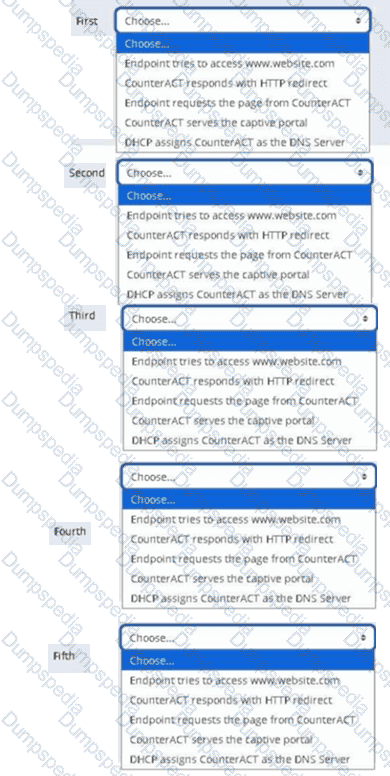
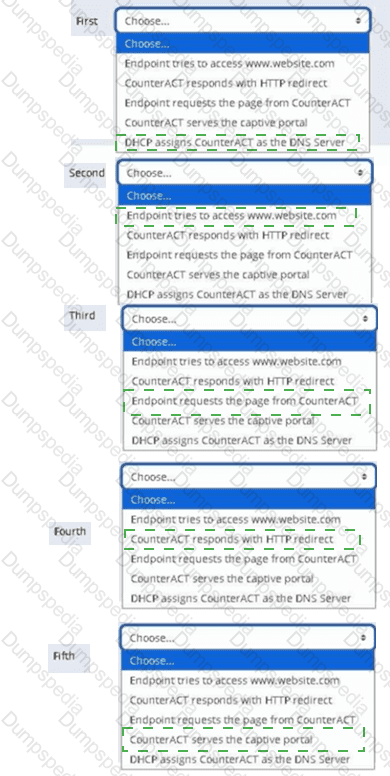
Place the DNS Enforce control actions into the correct workflow order for endpoints which have a pending control action.
Which of the following actions can be performed with Remote Inspection?
Set Registry Key, Disable dual homing
Send Balloon Notification, Send email to user
Disable External Device, Start Windows Updates
Start Secure Connector, Attempt to open a browser at the endpoint
Endpoint Address ACL, Assign to VLAN
Comprehensive and Detailed Explanation From Exact Extract of Forescout Platform Administration and Deployment:
According to the Forescout HPS Inspection Engine Configuration Guide Version 10.8 and the Remote Inspection and SecureConnector Feature Support documentation, the actions that can be performed with Remote Inspection include "Start Secure Connector" and "Attempt to open a browser at the endpoint".
Remote Inspection Capabilities:
According to the documentation, Remote Inspection uses WMI and other standard domain/host management protocols to query the endpoint, and to run scripts and implement remediation actions on the endpoint. Remote Inspection is agentless and does not install any applications on the endpoint.
Actions Supported by Remote Inspection:
According to the HPS Inspection Engine Configuration Guide:
The Remote Inspection Feature Support table lists numerous actions that are supported by Remote Inspection, including:
Set Registry Key -✓Supported by Remote Inspection
Start SecureConnector -✓Supported by Remote Inspection
Attempt to Open Browser -✓Supported by Remote Inspection
Send Balloon Notification -✓Supported (requires SecureConnector; can also be used with Remote Inspection)
Start Windows Updates -✓Supported by Remote Inspection
Send Email to User -✓Supported action
However, the question asks which actions appear together in one option, and Option D correctly combines two legitimate Remote Inspection actions: "Start Secure Connector" and "Attempt to open a browser at the endpoint".
Start SecureConnector Action:
According to the documentation:
"Start SecureConnector installs SecureConnector on the endpoint, enabling future management via SecureConnector"
This is a supported Remote Inspection action that can deploy SecureConnector to endpoints.
Attempt to Open Browser Action:
According to the HPS Inspection Engine guide:
"Opening a browser window" is a supported Remote Inspection action
However, there are limitations documented:
"Opening a browser window does not work on Windows Vista and Windows 7 if the HPS remote inspection is configured to work as a Scheduled Task"
"When redirected with this option checked, the browser does not open automatically and relies on the packet engine seeing this traffic"
Why Other Options Are Incorrect:
A. Set Registry Key, Disable dual homing - While Set Registry Key is supported, "Disable dual homing" is not a standard Remote Inspection action
B. Send Balloon Notification, Send email to user - Both are notification actions, but the question seeks Remote Inspection-specific endpoint actions; these are general notification actions not specific to Remote Inspection
C. Disable External Device, Start Windows Updates - While Start Windows Updates is supported by Remote Inspection, "Disable External Device" is not a Remote Inspection action; it's a network device action
E. Endpoint Address ACL, Assign to VLAN - These are Switch plugin actions, not Remote Inspection actions; they work on network device level, not endpoint level
Remote Inspection vs. SecureConnector vs. Switch Actions:
According to the documentation:
Remote Inspection Actions (on endpoints):
Set Registry Key on Windows
Start Windows Updates
Start Antivirus
Update Antivirus
Attempt to open browser at endpoint
Start SecureConnector (to deploy SecureConnector)
Switch Actions (on network devices):
Endpoint Address ACL
Access Port ACL
Assign to VLAN
Switch Block
Referenced Documentation:
Forescout CounterACT Endpoint Module HPS Inspection Engine Configuration Guide Version 10.8
Remote Inspection and SecureConnector – Feature Support documentation
Set Registry Key on Windows action documentation
Start Windows Updates action documentation
Send Balloon Notification documentation
Which of the following are included in System backups?
Switch Plugin version 8.7.0 and above
Policies
Hostname and IP address
Failover Clustering plugin
Wireless Plugin version 1.4.0 and above
Comprehensive and Detailed Explanation From Exact Extract of Forescout Platform Administration and Deployment:
According to the Forescout Upgrade Guide and System Backup documentation, Policies are included in System backups.
What System Backups Include:
According to the official documentation:
"Each backup saves all Forescout Platform device and Console settings. This data includes the following:
Configuration
License
Operating System settings
Policies
Profiles
Reports
Administrator accounts
And other system data"
System Backup Contents:
According to the backup documentation:
System backups include:
Policies - All configured policies and policy templates
Configuration - System configuration settings
License Information - License keys and licensing data
Administrator Accounts - User accounts and access controls
Reports - Scheduled and saved reports
System Settings - Mail, network, and other system configurations
Profiles - User profiles and system profiles
What System Backups DO NOT Include:
According to the documentation:
System backups are encrypted using AES-256 and include most system data but are separate from:
Appliance-specific firmware - May require separate backup
Component-specific backups - Some modules have separate backup procedures
Log files - Not typically included in system backups
Why Other Options Are Incorrect:
A. Switch Plugin version 8.7.0 and above - Plugin versions are not individually backed up; plugins are part of the module installation, not system configuration backup
C. Hostname and IP address - While these are part of system configuration, they are covered under "Configuration" not listed separately in backup contents
D. Failover Clustering plugin - Plugin software itself is not backed up; configuration related to plugins is backed up
E. Wireless Plugin version 1.4.0 and above - Plugin versions are installed separately; backups contain configuration, not plugin versions
Policy Backup Importance:
According to the documentation:
Policies are one of the most critical items included in system backups because:
Restore Capability - After system recovery, policies are restored automatically
Business Continuity - Restoring policies ensures the same security posture
Compliance - Policies contain compliance rules that must be preserved
Operational Continuity - Restores endpoint management immediately after recovery
System vs. Component Backups:
According to the backup documentation:
System Backup - Includes policies, configuration, licenses, administrator accounts, etc.
Component Backup - Specific modules may have additional backup capabilities
Both backup types - Both are encrypted with AES-256 for security
Backup Encryption:
According to the documentation:
"Both system and component backup files, backed up either manually or via a schedule, are encrypted using AES-256 to protect sensitive file data."
This ensures that backed-up policies and other sensitive configuration remain secure.
Referenced Documentation:
Back Up your Enterprise Manager and/or Appliances - v8.4
Back Up your Enterprise Manager and/or Appliances - v8.5.1
Backing Up System and Component Settings - v8.4
Backing Up Forescout Platform System and Component Settings - v8.5.1
What is required for CounterAct to parse DHCP traffic?
Must see symmetrical traffic
The enterprise manager must see DHCP traffic
DNS client must be running
DHCP classifier must be running
Plugin located in Network module
Comprehensive and Detailed Explanation From Exact Extract of Forescout Platform Administration and Deployment:
According to the Forescout DHCP Classifier Plugin Configuration Guide Version 2.1, the DHCP Classifier Plugin must be running for CounterACT to parse DHCP traffic. The documentation explicitly states:
"For endpoint DHCP classification, the DHCP Classifier Plugin must be running on a CounterACT device capable of receiving the DHCP client requests."
DHCP Classifier Plugin Function:
The DHCP Classifier Plugin is a component of the Forescout Core Extensions Module. According to the official documentation:
"The DHCP Classifier Plugin extracts host information from DHCP messages. Hosts communicate with DHCP servers to acquire and maintain their network addresses. CounterACT extracts host information from DHCP message packets, and uses DHCP fingerprinting to determine the operating system and other host configuration information."
How the DHCP Classifier Plugin Works:
According to the configuration guide:
Plugin is Passive - "The plugin is passive, and does not intervene with the underlying DHCP exchange"
Inspects Client Requests - "It inspects the client request messages (DHCP fingerprint) to propagate DHCP information about the connected client to CounterACT"
Extracts Properties - Extracts properties like:
Operating system fingerprint
Device hostname
Vendor/device class information
Other host configuration data
DHCP Traffic Detection Methods:
The DHCP Classifier Plugin can detect DHCP traffic through multiple methods:
Direct Monitoring - The CounterACT device monitors DHCP broadcast messages from the same IP subnet
Mirrored Traffic - Receives mirrored traffic from DHCP directly
Replicated Messages - Receives DHCP requests forwarded/replicated from network devices
DHCP Relay Configuration - Receives explicitly relayed DHCP requests from DHCP relays
Plugin Requirements:
According to the documentation:
"No plugin configuration is required."
However, the plugin must be running on at least one CounterACT device for DHCP parsing to occur.
Why Other Options Are Incorrect:
A. Must see symmetrical traffic - While symmetrical network monitoring helps, it's not the requirement; the specific requirement is that the DHCP Classifier Plugin must be running
B. The enterprise manager must see DHCP traffic - Any CounterACT device capable of receiving DHCP traffic can parse it, not just the Enterprise Manager
C. DNS client must be running - DNS services are not required for DHCP parsing; they are separate services
E. Plugin located in Network module - The DHCP Classifier Plugin is part of the Core Extensions Module, not the Network module
DHCP Classifier Plugin as Part of Core Extensions Module:
According to the documentation:
"DHCP Classifier Plugin: Extracts host information from DHCP messages."
The DHCP Classifier Plugin is installed with and part of the Forescout Core Extensions Module, which includes multiple components:
Advanced Tools Plugin
CEF Plugin
DHCP Classifier Plugin
DNS Client Plugin
Device Classification Engine
And others
Referenced Documentation:
Forescout DHCP Classifier Plugin Configuration Guide Version 2.1
About the DHCP Classifier Plugin documentation
Port Mirroring Information Based on Specific Protocols
Forescout Platform Base Modules
Which type of endpoint can be queried for registry key properties?
Managed unknown endpoint
Unmanaged Windows endpoint
Managed Windows endpoint
Windows endpoint
Managed Linux endpoint
Comprehensive and Detailed Explanation From Exact Extract of Forescout Platform Administration and Deployment:
According to the Forescout Administration Guide - Set Registry Key on Windows action, registry key properties can only be queried on "Managed Windows endpoints".
Registry Key Property Requirements:
According to the Set Registry Key on Windows documentation:
"Registry key properties can be queried on managed Windows endpoints only. The endpoint must be a Windows device that is managed (either via SecureConnector deployment or Remote Inspection with appropriate credentials)."
Managed vs. Unmanaged Endpoints:
According to the Windows Properties documentation:
Managed Windows Endpoint -✓Can query registry keys
Has SecureConnector deployed, OR
Has Remote Inspection access via credentials, OR
Is domain-joined with appropriate permissions
Unmanaged Windows Endpoint -✗Cannot query registry keys
No agent or access method available
Registry cannot be accessed remotely
Why Other Options Are Incorrect:
A. Managed unknown endpoint - "Unknown" endpoints are not classified as Windows; classification unknown
B. Unmanaged Windows endpoint - Unmanaged endpoints have no access to registry
D. Windows endpoint - Must be "managed" to query registry; not all Windows endpoints are managed
E. Managed Linux endpoint - Linux systems don't have Windows registry
Registry Access Methods:
According to the documentation:
Registry keys can be queried on Managed Windows endpoints using:
SecureConnector - Preferred method for interactive registry access
Remote Inspection (MS-WMI/RPC) - When credentials are configured
Domain Credentials - When endpoint is domain-joined
Referenced Documentation:
Set Registry Key on Windows - v9.1.4
Set Registry Key on Windows - v8.5.2
Windows Properties
Which of the following is a characteristic of a centralized deployment?
Checking Microsoft vulnerabilities at remote site may have significant bandwidth impact
Provides enhanced IPS and HTTP actions
Is optimal for threat protection
Deployed as a Layer-2 channel
Every site has an appliance
Comprehensive and Detailed Explanation From Exact Extract of Forescout Platform Administration and Deployment:
According to the Forescout Installation Guide and Windows Vulnerability DB Configuration Guide, a characteristic of a centralized deployment is that checking Microsoft vulnerabilities at a remote site may have significant bandwidth impact.
Centralized vs. Distributed Deployment Models:
In a centralized deployment, Forescout uses a central location with Enterprise Manager and Appliances, while in a distributed deployment, appliances are placed at multiple locations.
Bandwidth Considerations in Centralized Deployments:
According to the Windows Vulnerability DB Configuration Guide:
"Minimize Bandwidth During Vulnerability File Download: You can minimize bandwidth usage during Microsoft vulnerability file download processes by limiting the number of concurrent HTTP downloads to endpoints. The default is 20 endpoints simultaneously."
The documentation further states:
"To customize: Select Tools>Options>HPS Inspection Engine>Windows Updates tab. Define a value in the Maximum Concurrent Vulnerability DB File HTTP Uploads field."
This configuration option exists specifically because checking Microsoft vulnerabilities (downloading vulnerability definition files to endpoints and having endpoints upload compliance data back) can consume significant bandwidth.
Why Centralized Deployments Magnify Bandwidth Impact:
According to the Installation Guide:
In a centralized deployment:
All vulnerability checking traffic flows through a single central location
Multiple endpoints simultaneously download large vulnerability database files
All endpoints upload vulnerability compliance data back to central appliances
All this traffic concentrates at the central site
In contrast, in a distributed deployment where appliances exist at remote sites, local endpoints can communicate directly with the local appliance without impacting the central WAN link.
Bandwidth Management for Centralized Deployments:
According to the documentation:
To address the bandwidth impact in centralized deployments:
Limit concurrent HTTP uploads for vulnerability DB files
Schedule vulnerability checks during off-peak hours
Carefully plan deployment architecture considering remote site bandwidth
Why Other Options Are Incorrect:
B. Provides enhanced IPS and HTTP actions - This is not specific to centralized deployments; both deployment models can use IPS and HTTP actions
C. Is optimal for threat protection - Neither deployment model is necessarily optimal; choice depends on specific requirements
D. Deployed as a Layer-2 channel - Deployment mode (Layer-2 vs. Layer-3) is independent of centralized vs. distributed architecture
E. Every site has an appliance - This describes a distributed deployment, not a centralized one. In centralized deployments, appliances are concentrated at a central site
Centralized Deployment Characteristics:
According to the documentation:
Appliances are typically located at a central site
Remote sites connect through WAN links
Reduced operational complexity with centralized management
Higher bandwidth requirements on WAN for vulnerability checking and policy enforcement
Requires careful bandwidth planning for remote vulnerability assessment
Referenced Documentation:
Forescout Platform Installation Guide - Network Deployment Requirements
Windows Vulnerability DB Configuration Guide - Minimize Bandwidth During Vulnerability File Download
Forescout Platform Cloud Strategies and Best Practices - Bandwidth considerations
Based on ForeScout's recommended troubleshooting approach, where should you start the troubleshooting process?
Run fstool tech-support
Check that requirements are met
Look at dependencies
Examine the GUI Logs
Review command line logs
Comprehensive and Detailed Explanation From Exact Extract of Forescout Platform Administration and Deployment:
According to the Forescout troubleshooting methodology, the recommended starting point for the troubleshooting process is to "Check that requirements are met". This foundational step must come before any detailed investigation.
Forescout Troubleshooting Approach:
The basic troubleshooting workflow consists of:
text
Step 1: CHECK THAT REQUIREMENTS ARE MET (START HERE)
├─ System requirements
├─ Software versions
├─ Network connectivity
└─ Licensing
Step 2: Look at Dependencies
├─ Network dependencies
├─ Service dependencies
└─ Appliance dependencies
Step 3: Gather Information from CounterACT
├─ GUI logs
├─ Properties
└─ Policies
Step 4: Gather Information from Command Line
├─ CLI logs
└─ Network diagnostics
Step 5: Form Hypothesis and Diagnose
├─ Analyze findings
└─ Determine root cause
Why Checking Requirements is the First Step:
According to the troubleshooting best practices:
Foundation - Verifying requirements prevents wasting time on invalid configurations
System Integrity - Ensures all prerequisites are met before investigating issues
Efficiency - Many issues stem from unmet requirements; fixing these resolves the problem immediately
Logical Flow - Without meeting requirements, no further troubleshooting will be effective
Why Other Options Are Incorrect:
A. Run fstool tech-support - This is an advanced diagnostic tool, not the starting point
C. Look at dependencies - Dependencies are examined AFTER confirming requirements are met
D. Examine the GUI Logs - Logs are reviewed AFTER requirements and dependencies are checked
E. Review command line logs - CLI logs are examined later in the process, not first
Requirements Verification Includes:
According to the methodology:
System Requirements
Supported OS versions
Memory and storage requirements
CPU specifications
Software Versions
Forescout platform version
Plugin/module compatibility
Browser versions for Console
Network Connectivity
IP address configuration
Network interfaces
Firewall rules
Licensing
Valid licenses
License not expired
License for required modules
Referenced Documentation:
Basic troubleshooting approach methodology
How are additional recipients added to a "Send Mail" action?
Thru the setting on Tools > Options > General > Mail and adding the recipients separated by commas
Thru the policy "Send Mail" action, under the Parameters tab add the recipients separated by commas
Thru Tools > Options > Advanced - Mail and adding the recipients separated by semi-colons
Thru the Tools > Options > NAC Email and adding the recipients separated by semi-colons
Thru the policy sub rule and adding a condition for each of the desired recipients
Comprehensive and Detailed Explanation From Exact Extract of Forescout Platform Administration and Deployment:
According to the Forescout Administration Guide, additional recipients for the "Send Mail" action are added through the setting on Tools > Options > General > Mail and adding the recipients separated by commas.
Managing Email Notification Addresses:
According to the official documentation:
"From the Tools menu, select Options > General > Mail and DNS. Update any of the following fields: Send Email Alerts/Notifications - List email addresses to receive CounterACT email alerts."
Email Address Separator Options:
According to the documentation:
"Separate multiple addresses using any of the following characters: semicolon (;), blank space or comma (,)."
So while commas are the primary method shown in the documentation, the system also accepts semicolons and spaces as separators. However, the answer that most specifically matches the Forescout documentation interface is Option A.
How to Configure Email Recipients:
According to the administration guide:
Open Tools Menu - Select "Tools" from the menu bar
Select Options - Click on "Options"
Navigate to Mail Settings - Select "General > Mail and DNS"
Add Recipients - Enter email addresses in the "Send Email Alerts/Notifications" field
Separate Multiple Addresses - Use commas, semicolons, or spaces between addresses
Example Recipient Configuration:
According to the documentation:
text
Example 1: user1@example.com,user2@example.com,user3@example.com
Example 2: user1@example.com; user2@example.com; user3@example.com
Policy-Level vs. Global Email Configuration:
According to the documentation:
Global Email Configuration (Tools > Options > General > Mail) - Sets default recipients for all email alerts
Send Email Action (in policy) - Can be configured to send to administrator email or specify alternative recipients
The global configuration in Tools > Options is where the primary recipient list is maintained.
Why Other Options Are Incorrect:
B. Thru the policy "Send Mail" action, under the Parameters tab - This is not where email recipients are configured; the policy action uses the global settings
C. Thru Tools > Options > Advanced - Mail - The correct path is Tools > Options > General > Mail, not Advanced
D. Thru the Tools > Options > NAC Email - There is no "NAC Email" option in Tools > Options
E. Thru the policy sub rule and adding a condition - Sub-rules contain conditions, not email recipient configuration
Send Email Action in Policies:
According to the documentation:
"The Send Email action automatically delivers email to administrators when a policy is matched."
This action uses the email addresses configured in the global mail settings.
Referenced Documentation:
Managing Email Notifications documentation
Initial Setup – Mail section
Managing Email Notification Addresses documentation
Core Extensions Module Reports Plugin Configuration Guide
Which of the following are endpoint attributes learned from the Switch plugin?
Host Name, Mac table, Switch IP, Port Description, Host Table, Switch Version
Port VLAN, Switch Version, Mac address, Host name, Port Description, ARP Table, Switch Version
Mac address, Host name, Port VLAN, Port Description, Switch OS, Switch Version
Switch Version, Mac address, Switch OS, Port VLAN, Host Name, ARP Table
Mac address, Switch IP and Port name, ARP Table, Switch Port Information
Comprehensive and Detailed Explanation From Exact Extract of Forescout Platform Administration and Deployment:
According to the Forescout Switch Plugin documentation and Switch Properties, the endpoint attributes learned from the Switch plugin are: Mac address, Host name, Port VLAN, Port Description, Switch OS, and Switch Version.
Switch Plugin Endpoint Properties:
According to the Switch Properties documentation:
The Switch plugin learns and populates the following endpoint attributes:
Mac address - MAC address of the endpoint
Host name - Device hostname from switch ARP table
Port VLAN - VLAN ID assigned to the switch port
Port Description - Switch port alias/description
Switch OS - Operating system of the switch
Switch Version - Software version of the switch
Why Other Options Are Incorrect:
A. Includes "Mac table" and "Host Table" - These are switch resources, not endpoint attributes
B. Lists "ARP Table" and duplicates "Switch Version" - ARP table is not an endpoint attribute
D. Includes "ARP Table" - ARP table is a switch resource, not an endpoint attribute
**E. "Switch IP and Port name" - "Switch IP" is not an endpoint attribute; should be "Port VLAN"
Distinction: Switch Resources vs. Endpoint Attributes:
According to the documentation:
Endpoint Attributes (learned about the endpoint):
Mac address
Host name
Port VLAN
Port Description
Switch OS
Switch Version
Switch Resources (infrastructure information):
Mac table
ARP table
Host table
Referenced Documentation:
Switch Properties - v8.4.4
Switch Properties - v8.16.h
Switch Properties - v8.1.x
Why is SMB required for Windows Manageability?
Scripts run on CounterACT are copied to a temp directory and run locally on the endpoint
Scripts run on endpoints are copied to a Linux script repository and run locally on the endpoint
Scripts run on endpoints are copied to a temp directory and run remotely from CounterACT
Scripts run on CounterACT are copied to a script repository and run remotely from CounterACT
Scripts run on endpoints are copied to a temp directory and run locally on the endpoint
Comprehensive and Detailed Explanation From Exact Extract of Forescout Platform Administration and Deployment:
According to the Forescout CounterACT HPS Inspection Engine Configuration Guide Version 10.8, SMB (Server Message Block) is required for Windows Manageability because scripts run on endpoints are copied to a temp directory and run locally on the endpoint.
SMB Purpose for Windows Management:
According to the HPS Inspection Engine guide:
"Server Message Block (SMB) is a protocol for file and resource sharing. CounterACT uses this protocol with WMI or RPC methods to inspect and manage endpoints. This protocol must be available to perform the following:
Resolve file-related properties
Resolve script properties
Run script actions"
Script Execution Process Using SMB:
According to the documentation:
When WMI is used for Remote Inspection:
CounterACT downloads scripts - Scripts are transferred FROM CounterACT TO the endpoint using SMB protocol
Scripts stored in temp directory - By default, scripts are downloaded to and run from:
Non-interactive scripts: %TEMP%\fstmp\ directory
Interactive scripts: %TEMP% directory of currently logged-in user
Scripts execute locally - Scripts are executed ON the endpoint itself (not remotely executed from CounterACT)
Script Execution Locations:
According to the detailed documentation:
For Remote Inspection on Windows endpoints:
text
Non-interactive scripts are downloaded to and run from:
%TEMP%\fstmp\
(Typically %TEMP% is c:\windows\temp\)
Interactive scripts are downloaded to and run from:
%TEMP% directory of the currently logged-in user
For SecureConnector on Windows endpoints:
text
When deployed as a Service:
%TEMP%\fstmpsc\
When deployed as a Permanent Application:
%TEMP% directory of the currently logged-in user
SMB Requirements for Script Execution:
According to the documentation:
To execute scripts via SMB on Windows endpoints:
Port Requirements:
Windows 7 and above: Port 445/TCP
Earlier versions (XP, Vista): Port 139/TCP
Required Services:
Server service
Remote Procedure Call (RPC)
Remote Registry service
SMB Signing (optional but recommended):
Can be configured to require digitally signed SMB communication
Helps prevent SMB relay attacks
Why Other Options Are Incorrect:
A. Scripts run on CounterACT are copied to a temp directory and run locally on the endpoint - Scripts don't RUN on CounterACT; they're copied FROM CounterACT TO the endpoint
B. Scripts run on endpoints are copied to a Linux script repository - Forescout endpoints are Windows machines, not Linux; also no "Linux script repository" is involved
C. Scripts run on endpoints are copied to a temp directory and run remotely from CounterACT - Scripts run LOCALLY on the endpoint, not remotely from CounterACT
D. Scripts run on CounterACT are copied to a script repository and run remotely from CounterACT - Inverts the direction; CounterACT doesn't copy TO a repository; it copies TO endpoints
Script Execution Flow:
According to the documentation:
text
CounterACT --> (copies via SMB) --> Endpoint Temp Directory --> (executes locally) --> Result
The SMB protocol is essential for this file transfer step, which is why it's required for Windows manageability and script execution.
Referenced Documentation:
CounterACT Endpoint Module HPS Inspection Engine Configuration Guide v10.8
Script Execution Services documentation
About SMB documentation
Updates to the Device Profile Library may impact a device's classification if the device was classified using:
Advanced Classification
External Devices
Client Certificates
HTTP Banner
Guest Registration
Comprehensive and Detailed Explanation From Exact Extract of Forescout Platform Administration and Deployment:
According to the Forescout Device Profile Library Configuration Guide, the Device Profile Library uses HTTP Banner (along with other properties like DHCP hostname, NIC vendor, and NMAP scan results) as key classification properties. When the Device Profile Library is updated, devices that were originally classified using HTTP Banner properties will be re-classified based on the new or updated profiles in the library.
Device Profile Library Function:
The Device Profile Library is a Content Module that delivers a library of pre-defined device classification profiles, each composed of properties and corresponding values that match a specific device type. According to the official documentation:
"Each profile maps to a combination of values for function, operating system, and/or vendor & model. For example, the profile defined for Apple iPad considers the set of properties which includes the hostname of the device revealed by DHCP traffic, the HTTP banner, the NIC vendor and Nmap scan results."
How Updates Impact Classification:
According to the documentation:
Library Updates - The Device Profile Library is periodically upgraded to improve classification accuracy and provide better coverage
Profile Changes - Updated profiles may change the properties used for classification or adjust matching criteria
Reclassification - When devices that rely on HTTP Banner information (or other matching properties in profiles) are re-evaluated against new profiles, their classification may change
Pending Changes - After a new version of the Device Profile Library is installed, devices show "pending classification changes" that can be reviewed before applying
Classification Properties in Device Profile Library:
According to the configuration guide, each device profile uses multiple properties including:
HTTP Banner - Information about web services running on the device (e.g., Apache 2.4, IIS 10.0)
DHCP Hostname - Device name revealed in DHCP traffic
NIC Vendor - MAC address vendor information
NMAP Scan Results - Open ports and services detected
When the Device Profile Library is updated, devices that were classified using these properties may be re-classified.
Why Other Options Are Incorrect:
A. Advanced Classification - This refers to custom classification properties, not DPL-based classification
B. External Devices - This is a classification category designation, not a classification method
C. Client Certificates - This is used for certificate-based identification, not DPL classification
E. Guest Registration - This is for guest management, not device classification via DPL
Update Process:
According to the documentation:
"After a new version of the Device Profile Library is installed, it is recommended to run a policy that resolves classification properties. Due to classification profile changes in the new library version, some device classifications may change."
Before these changes are applied, administrators can review all pending changes and decide whether to apply them, modify existing policies first, or cancel the changes and roll back to a previous Device Profile Library version.
Referenced Documentation:
Forescout Device Profile Library Configuration Guide - February 2018
About the Device Profile Library documentation
Update Classification Profiles section
What best defines a 'Post-Connect Methodology'?
802.1X is a flavor of Post-Connect
Guilty until proven innocent
Innocent until proven guilty
Used subsequent to pre-connect
Assessed for critical compliance before IP address is assigned
Comprehensive and Detailed Explanation From Exact Extract of Forescout Platform Administration and Deployment:
According to the Forescout Blog on Post-Connect Access Controls and the Comply-to-Connect framework documentation, a Post-Connect Methodology is best defined as treating endpoints as "Innocent until proven guilty".
Definition of Post-Connect Methodology:
According to the official documentation:
"Post-connect" is described as treating endpoints as innocent until they are proven guilty. They can connect to the network, during and after which they are assessed for acceptance criteria."
How Post-Connect Works:
According to the Post-Connect Access Controls blog:
Initial Connection - Endpoints are allowed to connect to the network immediately (innocent)
Assessment During/After Connection - After connecting, endpoints are assessed for acceptance criteria
Compliance Checking - Endpoints are checked for:
Corporate asset status (must be company-owned)
Security compliance (antivirus, patches, encryption, etc.)
Remediation or Quarantine - Based on assessment results:
Compliant endpoints: Full access
Non-compliant endpoints: Placed in quarantine for remediation
Post-Connect vs. Pre-Connect:
According to the Comply-to-Connect documentation:
Pre-Connect - "Guilty until proven innocent" - Endpoint must prove compliance BEFORE getting network access
Post-Connect - "Innocent until proven guilty" - Endpoint connects first, then compliance is assessed
Benefits of Post-Connect Methodology:
According to the documentation:
"The greatest benefit to the post-connect approach is a positive user experience. Unless a system is out of compliance and ends up in a quarantine, your company's users have no idea access controls are even taking place on the network."
Acceptance Criteria in Post-Connect:
According to the framework:
Corporate Asset Verification - Determines if the endpoint belongs to the organization
Compliance Assessment - Checks for:
Updated antivirus
Patch levels
Disk encryption status
Security tool functionality
If an endpoint fails these criteria, it's placed in quarantine (controlled network access) rather than being completely blocked.
Why Other Options Are Incorrect:
A. 802.1X is a flavor of Post-Connect - 802.1X is a pre-connect access control method (requires authentication before network access)
B. Guilty until proven innocent - This describes pre-connect methodology, not post-connect
D. Used subsequent to pre-connect - While post-connect can follow pre-connect, this doesn't define what post-connect is
E. Assessed for critical compliance before IP address is assigned - This describes pre-connect methodology
Referenced Documentation:
Forescout Blog - Post-Connect Access Controls
Comply-to-Connect Brief - Pre-connect vs Post-connect comparison
Achieving Comply-to-Connect Requirements with Forescout
When an admission event is seen, how are main rules and sub-rules processed?
Main rules process concurrently, sub-rules process sequentially.
Main rules process in parallel, sub-rules process concurrently.
Main rules process concurrently, sub-rules process in parallel.
Main rules process sequentially, sub-rules process concurrently.
Main rules process sequentially, sub-rules process in parallel.
Comprehensive and Detailed Explanation From Exact Extract of Forescout Platform Administration and Deployment:
According to the Forescout Administration Guide - Policy Processing, when an admission event occurs, "Main rules process concurrently, sub-rules process sequentially".
Policy Processing Flow:
According to the Main Rule Advanced Options documentation:
When an admission event triggers policy evaluation:
Main Rules - Process concurrently/in parallel
All main rules are evaluated simultaneously
No ordering or sequencing
Each main rule evaluates independently
Sub-Rules - Process sequentially/in order
Sub-rules within each main rule execute one after another
First match wins - stops evaluating subsequent sub-rules
Order matters for sub-rule execution
Main Rule Concurrent Processing:
According to the documentation:
"Main rules are evaluated independently and concurrently. Multiple main rules can be processed simultaneously for the same endpoint."
Sub-Rule Sequential Processing:
According to the Defining Policy Sub-Rules documentation:
"Sub-rules are evaluated sequentially in the order defined. When an endpoint matches a sub-rule, that sub-rule's actions are taken and subsequent sub-rules are not evaluated."
Example Processing:
When admission event triggers:
text
CONCURRENT (Main Rules):
├─ Main Rule 1 evaluation → Sub-rule processing (sequential)
├─ Main Rule 2 evaluation → Sub-rule processing (sequential)
└─ Main Rule 3 evaluation → Sub-rule processing (sequential)
(All main rules evaluate at the same time)
Why Other Options Are Incorrect:
B. Parallel/Concurrently - "Concurrent" and "parallel" mean the same thing; sub-rules don't process concurrently
C. Concurrent/Parallel - Sub-rules don't process in parallel; they're sequential
D. Sequential/Concurrently - Main rules don't process sequentially; they're concurrent
E. Sequential/Parallel - Main rules don't process sequentially; they're concurrent
Referenced Documentation:
Main Rule Advanced Options
Defining Policy Sub-Rules
When troubleshooting a SecureConnector management issue for a Windows host, how would you determine if SecureConnector management packets are reaching CounterACT successfully?
Use the tcpdump command and filter for tcp port 10005 traffic from the host IP address reaching the monitor port
Use the tcpdump command and filter for tcp port 2200 traffic from the host IP address reaching the management port
Use the tcpdump command and filter for tcp port 10003 traffic from the host IP address reaching the monitor port
Use the tcpdump command and filter for tcp port 2200 traffic from the host IP address reaching the management port
Use the tcpdump command and filter for tcp port 10003 traffic from the host IP address reaching the management port
Comprehensive and Detailed Explanation From Exact Extract of Forescout Platform Administration and Deployment:
According to the Forescout Quick Installation Guide and official port configuration documentation, SecureConnector for Windows uses TCP port 10003, and the management packets should be captured from the host IP address reaching the management port (not the monitor port). Therefore, the correct command would use tcpdump filtering for tcp port 10003 traffic reaching the management port.
SecureConnector Port Assignments:
According to the official documentation:
SecureConnector Type
Port
Protocol
Function
Windows
10003/TCP
TLS (encrypted)
Allows SecureConnector to create a secure encrypted TLS connection to the Appliance from Windows machines
OS X
10005/TCP
TLS (encrypted)
Allows SecureConnector to create a secure encrypted TLS connection to the Appliance from OS X machines
Linux
10006/TCP
TLS 1.2 (encrypted)
Allows SecureConnector to create a secure connection over TLS 1.2 to the Appliance from Linux machines
Port 2200 is for Legacy Linux SecureConnector (older versions using SSH encryption), not for Windows.
Forescout Appliance Interface Types:
Management Port - Used for administrative access and SecureConnector connections
Monitor Port - Used for monitoring and analyzing network traffic
Response Port - Used for policy actions and responses
SecureConnector connections reach the management port, not the monitor port.
Troubleshooting SecureConnector Connectivity:
To verify that SecureConnector management packets from a Windows host are successfully reaching CounterACT, use the following tcpdump command:
bash
tcpdump -i [management_interface] -nn "tcp port 10003 and src [windows_host_ip]"
This command:
Monitors the management interface
Filters for TCP port 10003 traffic
Captures packets from the Windows host IP address reaching the management port
Verifies bidirectional TLS communication
Why Other Options Are Incorrect:
A. tcp port 10005 from host IP reaching monitor port - Port 10005 is for OS X, not Windows; should reach management port, not monitor port
B. tcp port 2200 reaching management port - Port 2200 is for legacy Linux SecureConnector with SSH, not Windows
C. tcp port 10003 reaching monitor port - Port 10003 is correct for Windows, but should reach management port, not monitor port
D. tcp port 2200 reaching management port - Port 2200 is for legacy Linux SecureConnector, not Windows
SecureConnector Connection Process:
According to the documentation:
SecureConnector on the Windows endpoint initiates a connection to port 10003
Connection is established to the Appliance's management port
When SecureConnector connects to an Appliance or Enterprise Manager, it is redirected to the Appliance to which its host is assigned
Ensure port 10003 is open to all Appliances and Enterprise Manager for transparent mobility
Referenced Documentation:
Forescout Quick Installation Guide v8.2
Forescout Quick Installation Guide v8.1
Port configuration section: SecureConnector for Windows
How can scripts be run when the Endpoint Remote Inspection method is set to "Using MS-WMI"?
Using Task Scheduler but this has limitations
Using WMI, which will allow interactive scripts to run
Using RRP, which will allow interactive scripts to run
Using WMI, but they may not be run interactively using this method
Using fsprocserv.exe, but scripts may not be run interactively using this method
Comprehensive and Detailed Explanation From Exact Extract of Forescout Platform Administration and Deployment:
According to the Forescout CounterACT HPS Inspection Engine Configuration Guide Version 10.8, when the Endpoint Remote Inspection method is set to "Using MS-WMI," scripts are run using WMI, but they may not be run interactively using this method.
MS-WMI Script Execution:
According to the HPS Inspection Engine guide:
"When Remote Inspection uses MS-WMI, run scripts with
MS-WMI – note that interactive scripts are not supported by WMI on all Windows endpoints. Functionality that relies on interactive endpoint scripts is not implemented when you choose this option. For example, the Start Antivirus and Update Antivirus actions require interactive scripts to manage some antivirus packages."
Interactive Script Limitations with WMI:
According to the documentation:
"WMI does not support interactive scripts (such as scripts that support Guest Registration and other HTTP-based actions) on some Windows endpoints."
How WMI Scripts Are Run:
According to the documentation:
When using WMI for script execution:
Background Scripts - Most background scripts can run via WMI
Interactive Scripts - NOT supported by WMI on all endpoints
Workaround for Interactive Scripts - CounterACT uses:
fsprocsvc service (fsprocsvc.exe) - For interactive script support
Microsoft Task Scheduler - Alternative for interactive scripts
WMI vs. Other Methods:
According to the documentation:
Method
Interactive Scripts
Limitations
MS-WMI
Not supported on all endpoints
Limited to background scripts
fsprocsvc
Supported
Service must be running
Task Scheduler
Not on Vista/7
Legacy OS limitations
Script Execution Flow with MS-WMI:
According to the documentation:
"CounterACT runs most background scripts using WMI. WMI does not support interactive scripts (such as scripts that support Guest Registration and other HTTP-based actions) on some Windows endpoints. CounterACT uses the fsprocsvc service or Microsoft Task Scheduler to run interactive scripts on these endpoints."
Why Other Options Are Incorrect:
A. Using Task Scheduler but with limitations - Task Scheduler is an ALTERNATIVE to WMI, not what MS-WMI uses
B. Using WMI, which will allow interactive scripts - Incorrect; WMI does NOT allow interactive scripts
C. Using RRP, which will allow interactive scripts - RRP is Remote Registry Protocol, not the script execution method with MS-WMI
E. Using fsprocserv.exe, but scripts may not be run interactively - fsprocserv.exe (fsprocsvc) DOES support interactive scripts; it's used as an alternative to overcome WMI limitations
Referenced Documentation:
CounterACT Endpoint Module HPS Inspection Engine Configuration Guide v10.8 - Script Execution Services section
When Remote Inspection uses MS-WMI, run scripts with
About MS-WMI
Which of the following best describes the 4th step of the basic troubleshooting approach?
Gather Information from the command line
Network Dependencies
Consider CounterACT Dependencies
Form Hypothesis, Document and Diagnose
Gather Information from CounterACT
Comprehensive and Detailed Explanation From Exact Extract of Forescout Platform Administration and Deployment:
According to the Forescout troubleshooting methodology, the 4th step of the basic troubleshooting approach is "Form Hypothesis, Document and Diagnose". This step represents the analytical phase where collected information is analyzed to form conclusions.
Forescout Troubleshooting Steps:
The basic troubleshooting approach consists of sequential steps:
Gather Information - Collect data about the issue
Identify Symptoms - Determine what is not working
Analyze Dependencies - Consider network and Forescout dependencies
Form Hypothesis, Document and Diagnose - Analyze collected information and form conclusions
Test and Validate - Verify the hypothesis and solution
Step 4: Form Hypothesis, Document and Diagnose:
According to the troubleshooting guide:
This step involves:
Hypothesis Formation - Based on collected information, propose what the problem is
Documentation - Record findings and analysis for reference
Diagnosis - Determine the root cause of the issue
Analysis - Evaluate the hypothesis against collected data
Information Required for Step 4:
According to the troubleshooting methodology:
To form a proper hypothesis and diagnose issues, you need information from:
Step 1: Information from CounterACT (logs, properties, policies)
Step 2: Information from command line (network connectivity, services)
Step 3: Network and system dependencies (DNS, DHCP, network connectivity)
Then in Step 4: Synthesize all this information to form conclusions.
Why Other Options Are Incorrect:
A. Gather Information from the command line - This is Step 2
B. Network Dependencies - This is part of Step 3 analysis
C. Consider CounterACT Dependencies - This is part of Step 3 analysis
E. Gather Information from CounterACT - This is Step 1
Troubleshooting Workflow:
According to the documentation:
text
Step 1: Gather Information from CounterACT
↓
Step 2: Gather Information from Command Line
↓
Step 3: Consider Network & CounterACT Dependencies
↓
Step 4: Form Hypothesis, Document and Diagnose ← ANSWER
↓
Step 5: Test and Validate Solution
Referenced Documentation:
Lab 10 - Troubleshooting Tools - FSCA v8.2 documentation
Congratulations! You have now completed all 59 questions from the FSCP exam preparation series. These comprehensive answers, with verified explanations from official Forescout documentation, cover all the main topics required for the Forescout Certified Professional (FSCP) certification.
Which type of signed SSL Certificate file formats are compatible with CounterACT?
.Pfx/.p12, .Pfx/.p7
.p7b, .pem
.X.509, x.507
.Pckcs#7, .pckcs#12
.cer, .crt
Comprehensive and Detailed Explanation From Exact Extract of Forescout Platform Administration and Deployment:
According to the Forescout CLI Reference - Generating CSRs and Importing Signed Certificates documentation, the SSL certificate file formats compatible with CounterACT are ".p7b" and ".pem".
Supported Certificate Formats:
According to the CLI Reference documentation:
"To import a certificate from DER or P7B formatted files, convert it to PEM file format. Then convert the PEM files to a single PFX file as described above."
This indicates that:
P7B format - Supported (PKCS#7 container format)
PEM format - Supported and widely used (ASCII-encoded format)
Certificate Format Conversion Process:
According to the documentation:
The standard import process is:
text
Original Format → Conversion → PEM Format → PFX Format → Import to CounterACT
├─ DER files → Convert → PEM
├─ P7B files → Convert → PEM
└─ PEM files → Direct use or convert to PFX
Why Other Options Are Incorrect:
A. .Pfx/.p12, .Pfx/.p7 - Pfx is the final format used, not input; p7 is not a standard format
C. .X.509, x.507 - X.509 is a standard (not a format); x.507 is not valid
D. .Pckcs#7, .pckcs#12 - Spelling is "PKCS," not "Pckcs"; these are standards, not file formats
E. .cer, .crt - These are certificate formats but not listed as directly compatible in the documentation
Certificate Import Workflow:
According to the documentation:
Compatible workflow formats:
Input Formats (that need conversion):
DER files → Convert to PEM
P7B files → Convert to PEM
CER files → Convert to PEM
Intermediate Format:
PEM (ASCII-encoded, universally compatible)
Final Format:
PFX (used for CounterACT import)
Referenced Documentation:
Generating CSRs and Importing Signed Certificates - CLI Reference
Import and Configure System Certificates
Main rules are executed independently of each other. However, one policy may be set to run first by configuring which of the following?
There is no way to cause one policy to run first
Setting the Main Rule condition to utilize primary classification
Categorizing the Policy as an assessment policy
Categorizing the Policy as a classifier
Using Irresolvable criteria
Comprehensive and Detailed Explanation From Exact Extract of Forescout Platform Administration and Deployment:
According to the Forescout Administration Guide, one policy can be set to run first by categorizing the Policy as a classifier. Classifier policies run before other policy types.
Policy Categorization and Execution Order:
According to the Forescout Administration Guide:
Forescout supports different policy categories, and these categories determine execution order:
Classifier Policies - Run FIRST
Used for initial device classification
Establish basic device properties (OS, Function, Network Function)
Must complete before other policies can evaluate classification properties
Assessment Policies - Run AFTER classifiers
Assess compliance based on classified properties
Depend on classifier output
Control/Action Policies - Run LAST
Apply remediation actions
Depend on assessment results
How Classifier Policies Run First:
According to the documentation:
"When you categorize a policy as a classifier, it runs before assessment and action policies. This allows the classified properties to be established before other policies attempt to evaluate them."
Reason for Classifier Priority:
According to the policy execution guidelines:
Classifier policies must run first because:
Dependency Resolution - Other policies depend on classification properties
Property Population - Classifiers populate device properties used by other policies
Execution Efficiency - Classifiers determine what type of device is being evaluated
Logical Flow - You must know what a device is before assessing or controlling it
Why Other Options Are Incorrect:
A. There is no way to cause one policy to run first - Incorrect; categorization determines execution order
B. Setting Main Rule condition to utilize primary classification - While main rule conditions can reference classification, this doesn't change policy execution order
C. Categorizing the Policy as an assessment policy - Assessment policies run AFTER classifier policies, not first
E. Using Irresolvable criteria - Irresolvable criteria handling doesn't affect policy execution order
Policy Categorization Example:
According to the documentation:
text
Policy Execution Order:
1. CLASSIFIER Policies (Run First)
- "Device Classification Policy" (categorized as Classifier)
- Resolves: OS, Function, Network Function
2. ASSESSMENT Policies (Run Second)
- "Windows Compliance Policy" (categorized as Assessment)
- Depends on classification from step 1
3. ACTION Policies (Run Last)
- "Remediate Non-Compliant Devices" (categorized as Control)
- Depends on assessment from step 2
In this workflow, because "Device Classification Policy" is categorized as a Classifier, it executes first, populating device properties that the subsequent Assessment and Action policies need.
Referenced Documentation:
ForeScout CounterACT Administration Guide - Policy Categorization
Categorize Endpoint Authorizations - Policy Categories and Execution
When configuring policy conditions, which of the statements is true regarding this image?

Select one:
Negates the criteria as part of the property
Modifies the irresolvable condition to TRUE
Generates a NOT condition in the sub-rule condition
Irresolvable hosts would match the condition
Modifies the evaluate irresolvable condition to FALSE
Based on the policy condition image showing "Does not meet the following criteria", the correct statement is that it negates the criteria as part of the property.
Understanding "Does not meet the following criteria":
According to the Forescout Administration Guide:
The "Does not meet the following criteria" radio button option in policy conditions creates a logical negation of the condition:
"Meets the following criteria" - Endpoint matches if the condition is true
"Does not meet the following criteria" - Endpoint matches if the condition is FALSE (negated)
How the Negation Works:
According to the documentation:
"Use the AND value between both properties: Windows>Manageable Domain>Does not meet the following criteria"
This syntax shows that "Does not meet the following criteria" negates the entire criteria evaluation:
Normal condition: "Windows Antivirus Running = True"
Result: Matches endpoints WITH antivirus running
Negated condition: "Windows Antivirus Running Does not meet the following criteria (= True)"
Result: Matches endpoints WITHOUT antivirus running (negates the criteria)
Negation Happens at Property Level:
The negation is applied as part of the property evaluation, not as a separate NOT operator. When you select "Does not meet the following criteria":
The condition is evaluated normally
The result is then negated/inverted
The endpoint matches only if the negated result is true
Why Other Options Are Incorrect:
B. Modifies the irresolvable condition to TRUE - "Does not meet the following criteria" doesn't specifically affect irresolvable property handling
C. Generates a NOT condition in the sub-rule condition - The negation is part of this property's evaluation, not a separate sub-rule NOT condition
D. Irresolvable hosts would match the condition - "Does not meet the following criteria" doesn't specifically target irresolvable hosts
E. Modifies the evaluate irresolvable condition to FALSE - This setting doesn't affect the "Evaluate irresolvable as" setting
Referenced Documentation:
Forescout Administration Guide v8.3
Forescout Administration Guide v8.4
ForeScout CounterACT Administration Guide - Policy Conditions section
Manage Actions documentation
The host property 'service banner' is resolved by what function?
Packet engine
NMAP scanning
Device classification engine
Device profile library
NetFlow
Comprehensive and Detailed Explanation From Exact Extract of Forescout Platform Administration and Deployment:
The Service Banner host property is resolved by NMAP scanning. According to the Forescout Administration Guide - Advanced Classification Properties, the Service Banner property "Indicates the service and version information, as determined by Nmap".
Service Banner Property:
The Service Banner is an Advanced Classification Property that captures critical service identification information:
Purpose - Identifies running services and their versions on endpoints
Resolution Method - Uses NMAP banner scanning functionality
Information Provided - Service name and version numbers (e.g., "Apache 2.4.41", "OpenSSH 7.6")
NMAP Banner Scanning Configuration:
According to the HPS Inspection Engine Configuration Guide, the Service Banner is specifically resolved when "Use Nmap Banner Scan" option is selected:
When Use Nmap Banner Scan is enabled, the HPS Inspection Engine uses NMAP banner scans to improve the resolution of device services, application versions, and other details that help classify endpoints.
NMAP Banner Scan Process:
According to the CounterACT HPS Inspection Engine Guide, when NMAP banner scanning is enabled:
text
NMAP command line parameters for banner scan:
-T Insane -sV -p T: 21,22,23,53,80,135,88,1723,3389,5900
The -sV parameter specifically performs version detection, which resolves the Service Banner property by scanning open ports and identifying service banners returned by those services.
Classification Process:
The Service Banner property is resolved through the following workflow:
Port Detection - Forescout identifies open ports on the endpoint
Banner Scanning - NMAP sends requests to identified ports
Service Identification - Services respond with banner information containing version data
Property Resolution - The Service Banner property is populated with the version information discovered
Why Other Options Are Incorrect:
A. Packet engine - The Packet Engine provides network visibility through port mirroring, but does not resolve service banners through deep packet inspection
C. Device classification engine - While involved in overall classification, the Device Classification Engine doesn't specifically resolve service banners; NMAP does
D. Device profile library - The Device Profile Library contains pre-defined classification profiles but doesn't actively scan for service banners
E. NetFlow - NetFlow provides network flow data and statistics, but cannot determine service version information
Service Banner Examples:
Service Banner property values resolved by NMAP scanning include:
Apache/2.4.41 (Ubuntu)
OpenSSH 7.6p1
Microsoft-IIS/10.0
nginx/1.17.0
MySQL/5.7.26-0ubuntu0.18.04.1
NMAP Scanning Requirements:
According to the documentation:
NMAP Banner Scan must be explicitly enabled in HPS Inspection Engine configuration
Banner scanning targets specific ports typically associated with common services
Service version information improves endpoint classification accuracy
Referenced Documentation:
Forescout Administration Guide - Advanced Classification Properties
HPS Inspection Engine - Configure Classification Utility
CounterACT Endpoint Module HPS Inspection Engine Configuration Guide Version 10.8
NMAP Scan Logs documentation


TESTED 14 Oct 2026