As of May 1, 2024 Brian Hill's annual salary is $60,000.00. On May 13, 2024 Brian Hill received a salary increase and data was entered into Workday at 2:00 PM the same day. The new salary amount is set to $90,000.00 with an effective date of May 10, 2024.
Run #1
Core Connector: Worker Integration System was launched as an ad-hoc manual run on May 13, 2024.
As of Entry Moment: 05/11/2024 2:00:00 PM
Effective Date: 05/11/2024
Last Successful As of Entry Moment: 05/09/2024 2:00:00 PM
Last Successful Effective Date: 05/09/2024
What will be the expected output in the Run #1 of the Core Connector: Worker Integration System?
Brian Hill will be excluded in the output file due to the Effective Date of his salary.
Brian Hill will be included in the output file. The salary amount will be $60,000.00.
Brian Hill will be excluded in the output file due to the Entry Moment of his salary.
Brian Hill will be included in the output file. The salary amount will be $90,000.00.
Let’s break this down:
Effective Date of salary change: May 10, 2024
Entry Moment (data entry timestamp): May 13, 2024, 2:00 PM
Integration Run As of Entry Moment: May 11, 2024, 2:00 PM
Salary data was entered AFTER this moment (May 13 vs May 11)
So based on Workday’s Change Detection logic:
A worker is included in the integration output only if the transaction was entered into Workday after the last successful entry moment, and the effective date is on or after the “Last Successful Effective Date”.
In this case:
Entry was made after the last As-of Entry Moment (May 13 > May 11)
Effective date (May 10) is after the last successful effective date (May 9)
Both conditions are met, so Brian Hill will be included, and the new salary of $90,000.00 will be reflected in the output.
Why other options are incorrect:
A. The effective date is valid.
B. $60,000 would be outdated.
C. Entry moment is after the As-of date, so not excluded.
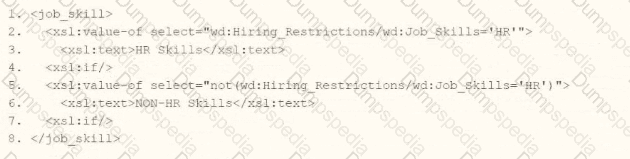
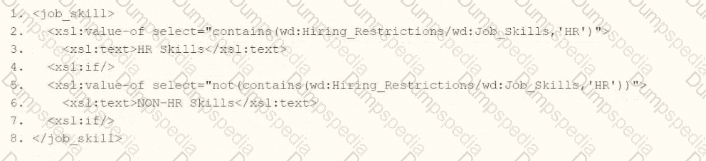
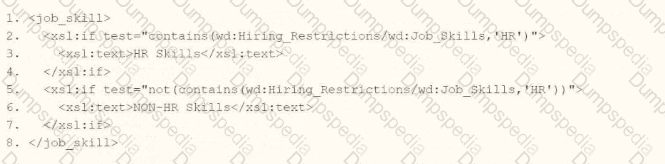
What is the purpose of a namespace in the context of a stylesheet?
Provides elements you can use in your code.
Indicates the start and end tag names to output.
Restricts the data the processor can access.
Controls the filename of the transformed result.
In the context of a stylesheet, particularly within Workday's Document Transformation system where XSLT (Extensible Stylesheet Language Transformations) is commonly used, a namespace serves a critical role in defining the scope and identity of elements and attributes. The correct answer, as aligned with Workday’s integration practices and standard XSLT principles, is that a namespace "provides elements you can use in your code." Here’s a detailed explanation:
Definition and Purpose of a Namespace:
A namespace in an XML-based stylesheet (like XSLT) is a mechanism to avoid naming conflicts by grouping elements and attributes under a unique identifier, typically a URI (Uniform Resource Identifier). This allows different vocabularies or schemas to coexist within the same document or transformation process without ambiguity.
In XSLT, namespaces are declared in the stylesheet using the xmlns attribute (e.g., xmlns:xsl="http://www.w3.org/1999/XSL/Transform " for XSLT itself). These declarations define the set of elements and functions available for use in the stylesheet, such as
For example, when transforming Workday data (which uses its own XML schema), a namespace might be defined to reference Workday-specific elements, enabling the stylesheet to correctly identify and manipulate those elements.
Application in Workday Context:
In Workday’s Document Transformation integrations, namespaces are essential when processing XML data from Workday (e.g., Core Connector outputs) or external systems. The namespace ensures that the XSLT processor recognizes the correct elements from the source XML and applies the transformation rules appropriately.
Without a namespace, the processor might misinterpret elements with the same name but different meanings (e.g.,
Why Other Options Are Incorrect:
B. Indicates the start and end tag names to output: This is incorrect because namespaces do not dictate the structure (start and end tags) of the output. That is determined by the XSLT template rules and output instructions (e.g.,
C. Restricts the data the processor can access: While namespaces help distinguish between different sets of elements, they do not inherently restrict data access. Restrictions are more a function of security settings or XPath expressions within the stylesheet, not the namespace itself.
D. Controls the filename of the transformed result: Namespaces have no bearing on the filename of the output. In Workday, the filename of a transformed result is typically managed by the Integration Attachment Service or delivery settings (e.g., SFTP or email configurations), not the stylesheet’s namespace.
Practical Example:
Suppose you’re transforming a Workday XML file containing employee data into a custom format. The stylesheet might include:
Here, the wd namespace provides access to Workday-specific elements like
Workday Pro Integrations Study Guide References:
Workday Integration System Fundamentals: Explains XML and XSLT basics, including the role of namespaces in identifying elements within stylesheets.
Document Transformation Module: Highlights how namespaces are used in XSLT to process Workday XML data, emphasizing their role in providing a vocabulary for transformation logic (e.g., "Understanding XSLT Namespaces").
Core Connectors and Document Transformation Course Manual: Includes examples of XSLT stylesheets where namespaces are declared to handle Workday-specific schemas, reinforcing that they provide usable elements.
Workday Community Documentation: Notes that namespaces are critical for ensuring compatibility between Workday’s XML output and external system requirements in transformation scenarios.
What task is needed to build a sequence generator for an EIB integration?
Put Sequence Generator Rule Configuration
Create ID Definition/Sequence Generator
Edit Tenant Setup - Integrations
Configure Integration Sequence Generator Service
In Workday, a sequence generator is used to create unique, sequential identifiers for integration processes, such as Enterprise Interface Builders (EIBs). These identifiers are often needed to ensure data uniqueness or to meet external system requirements for tracking records. The question asks specifically about building a sequence generator for an EIB integration, so we need to identify the correct task based on Workday’s integration configuration framework.
Understanding Sequence Generators in Workday
A sequence generator in Workday generates sequential numbers or IDs based on predefined rules, such as starting number, increment, and format. These are commonly used in integrations to create unique identifiers for outbound or inbound data, ensuring consistency and compliance with external system requirements. For EIB integrations, sequence generators are typically configured as part of the integration setup to handle data sequencing or identifier generation.
Analyzing the Options
Let’s evaluate each option to determine which task is used to build a sequence generator for an EIB integration:
A. Put Sequence Generator Rule Configuration
Description: This option suggests configuring rules for a sequence generator, but "Put Sequence Generator Rule Configuration" is not a standard Workday task name or functionality. Workday uses specific nomenclature like "Create ID Definition/Sequence Generator" for sequence generator setup. This option seems vague or incorrect, as it doesn’t align with Workday’s documented tasks for sequence generators.
Why Not Correct?: It’s not a recognized Workday task, and sequence generator configuration is typically handled through a specific setup process, not a "put" or rule-based configuration in this context.
B. Create ID Definition/Sequence Generator
Description: This is a standard Workday task used to create and configure sequence generators. In Workday, you navigate to the "Create ID Definition/Sequence Generator" task under the Integrations or Setup domain to define a sequence generator. This task allows you to specify the starting number, increment, format (e.g., numeric, alphanumeric), and scope (e.g., tenant-wide or integration-specific). For EIB integrations, this task is used to generate unique IDs or sequences for data records.
Why Correct?: This task directly aligns with Workday’s documentation for setting up sequence generators, as outlined in integration guides. It’s the standard method for building a sequence generator for use in EIBs or other integrations.
C. Edit Tenant Setup - Integrations
Description: This task involves modifying broader tenant-level integration settings, such as enabling services, configuring security, or adjusting integration parameters. While sequence generators might be used within integrations, this task is too high-level and does not specifically address creating or configuring a sequence generator.
Why Not Correct?: It’s not granular enough for sequence generator setup; it focuses on tenant-wide integration configurations rather than the specific creation of a sequence generator.
D. Configure Integration Sequence Generator Service
Description: This option suggests configuring a service specifically for sequence generation within an integration. However, Workday does not use a task named "Configure Integration Sequence Generator Service." Sequence generators are typically set up as ID definitions, not as standalone services. This option appears to be a misnomer or non-standard terminology.
Why Not Correct?: It’s not a recognized Workday task, and sequence generators are configured via "Create ID Definition/Sequence Generator," not as a service configuration.
Conclusion
Based on Workday’s integration framework and documentation, the correct task for building a sequence generator for an EIB integration is B. Create ID Definition/Sequence Generator. This task allows you to define and configure the sequence generator with the necessary parameters (e.g., starting value, increment, format) for use in EIBs. This is a standard practice for ensuring unique identifiers in integrations, as described in Workday’s Pro Integrations training materials.
Surprising Insight
It’s interesting to note that Workday’s sequence generators are highly flexible, allowing customization for various use cases, such as generating employee IDs, transaction numbers, or integration-specific sequences. The simplicity of the "Create ID Definition/Sequence Generator" task makes it accessible even for non-technical users, which aligns with Workday’s no-code integration philosophy.
Key Citations
Workday Pro Integrations Study Guide, Module 3: EIB Configuration
Workday Integration Cloud Connect: Sequence Generators
Workday EIB and Sequence Generator Overview
Configuring Workday Integrations: ID Definitions
What is the purpose of declaring and defining the namespace in an XSLT stylesheet?
To specify the version of XML being used in the source document.
To distinguish XSLT elements from other XML elements.
To specify the encoding type for the document.
To provide a URL where additional transformation rules can be downloaded.
In an XSLT stylesheet, the purpose of declaring the XSLT namespace is to differentiate XSLT instructions (like
“XSLT uses XML syntax, so to avoid confusion with the actual data, all XSLT elements must be associated with the XSL namespace xmlns:xsl="http://www.w3.org/1999/XSL/Transform ".”
This ensures the processor interprets
Why others are incorrect:
A. XML version is declared separately ()
C. Encoding is set in the XML declaration, not in namespaces.
D. Namespaces are not used to retrieve external transformation rules.
Refer to the following scenario to answer the question below. Your integration has the following runs in the integration events report (Date format of MM/DD/YYYY):
Run #1
• Core Connector: Worker Integration System was launched on May 15, 2024 at 3:00:00 AM
• As of Entry Moment: 05/15/2024 3:00:00 AM
• Effective Date: 05/15/2024
• Last Successful As of Entry Moment: 05/01/2024 3:00:00 AM
• Last Successful Effective Date: 05/01/2024
Run #2
• Core Connector: Worker Integration System was launched on May 31, 2024 at 3:00:00 AM
• As of Entry Moment: 05/31/2024 3:00:00 AM
• Effective Date: 05/31/2024
• Last Successful As of Entry Moment: 05/15/2024 3:00:00 AM
• Last Successful Effective Date: 05/15/2024
On May 13, 2024 Brian Hill receives a salary increase. The new salary amount is set to $90,000.00 with an effective date of May 22, 2024. Which of these runs will include Brian Hill's compensation change?
Brian Hill will only be included in the first integration run.
Brian Hill will be included in both integration runs.
Brian Hill will only be included the second integration run.
Brian Hill will be excluded from both integration runs.
The scenario involves a Core Connector: Worker integration with two runs detailed in the integration events report. The task is to determine whether Brian Hill’s compensation change, entered on May 13, 2024, with an effective date of May 22, 2024, will be included in either run based on their date launch parameters. Let’s analyze each run against the change details.
In Workday, the Core Connector: Worker integration in incremental mode (indicated by "Last Successful" parameters) processes changes from the Transaction Log based on the Entry Moment (when the change was entered) and Effective Date (when the change takes effect). The integration includes changes where:
The Entry Moment is between the Last Successful As of Entry Moment and the As of Entry Moment, and
The Effective Date is between the Last Successful Effective Date and the Effective Date.
Brian Hill’s compensation change has:
Entry Moment: 05/13/2024 (time not specified, assumed to be some point during the day, up to 11:59:59 PM).
Effective Date: 05/22/2024.
Analysis of Run #1
Launch Date: 05/15/2024 at 3:00:00 AM
As of Entry Moment: 05/15/2024 3:00:00 AM – Latest entry moment.
Effective Date: 05/15/2024 – Latest effective date.
Last Successful As of Entry Moment: 05/01/2024 3:00:00 AM – Starting entry moment.
Last Successful Effective Date: 05/01/2024 – Starting effective date.
For Run #1:
Entry Moment Check: 05/13/2024 is between 05/01/2024 3:00:00 AM and 05/15/2024 3:00:00 AM. This condition is met.
Effective Date Check: 05/22/2024 is after 05/15/2024 (Effective Date). This condition is not met.
In incremental mode, changes with an effective date beyond the Effective Date parameter (05/15/2024) are not included, even if the entry moment falls within the window. Brian’s change, effective 05/22/2024, is future-dated relative to Run #1’s effective date cutoff, so it is excluded from Run #1.
Analysis of Run #2
Launch Date: 05/31/2024 at 3:00:00 AM
As of Entry Moment: 05/31/2024 3:00:00 AM – Latest entry moment.
Effective Date: 05/31/2024 – Latest effective date.
Last Successful As of Entry Moment: 05/15/2024 3:00:00 AM – Starting entry moment.
Last Successful Effective Date: 05/15/2024 – Starting effective date.
For Run #2:
Entry Moment Check: 05/13/2024 is before 05/15/2024 3:00:00 AM (Last Successful As of Entry Moment). This condition is not met in a strict sense.
Effective Date Check: 05/22/2024 is between 05/15/2024 and 05/31/2024. This condition is met.
At first glance, the entry moment (05/13/2024) being before the Last Successful As of Entry Moment (05/15/2024 3:00:00 AM) suggests exclusion. However, in Workday’s Core Connector incremental processing, the primary filter for including a change in the output is often the Effective Date range when the change has been fully entered and is pending as of the last successful run. Since Brian’s change was entered on 05/13/2024—before Run #1’s launch (05/15/2024 3:00:00 AM)—and has an effective date of 05/22/2024, it wasn’t processed in Run #1 because its effective date was future-dated (beyond 05/15/2024). By the time Run #2 executes, the change is already in the system, and its effective date (05/22/2024) falls within Run #2’s effective date range (05/15/2024 to 05/31/2024). Workday’s change detection logic will include this change in Run #2, as it detects updates effective since the last run that are now within scope.
Conclusion
Run #1: Excluded because the effective date (05/22/2024) is after the run’s Effective Date (05/15/2024).
Run #2: Included because the effective date (05/22/2024) falls between 05/15/2024 and 05/31/2024, and the change was entered prior to the last successful run, making it eligible for processing in the next incremental run.
Thus, C. Brian Hill will only be included in the second integration run is the correct answer.
Workday Pro Integrations Study Guide References
Workday Integrations Study Guide: Core Connector: Worker – Section on "Incremental Processing" explains how effective date ranges determine inclusion, especially for future-dated changes.
Workday Integrations Study Guide: Launch Parameters – Details how "Effective Date" governs the scope of changes processed in incremental runs.
Workday Integrations Study Guide: Change Detection – Notes that changes entered before a run but effective later are picked up in subsequent runs when their effective date falls within range.
Refer to the following XML to answer the question below.
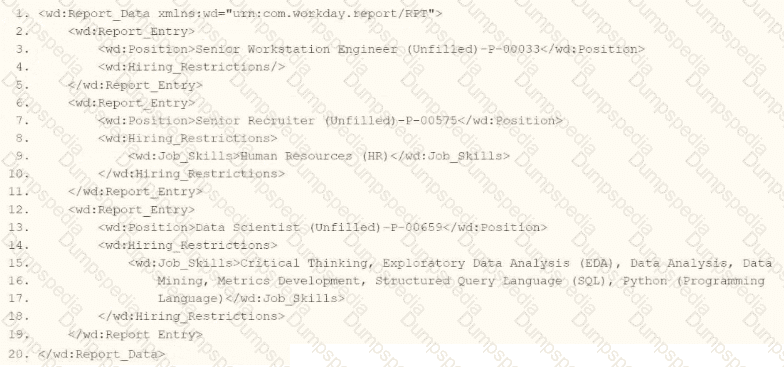
You need the integration file to format the ps:PositionJD field to 10 characters and report any truncated values as an error.
How will you start your template match on ps:Position to use Document Transformation (DT) to do the transformation using ETV with your truncation validation?


In Workday integrations, Document Transformation (DT) using XSLT is employed to transform XML data, such as the output from a Core Connector or EIB, into a specific format for third-party systems. In this scenario, you need to transform the ps:Position_ID field within the ps:Position element to a fixed length of 10 characters and report any truncation as an error using Workday’s Extension for Transformation and Validation (ETV) attributes. The template must match the ps:Position element and apply the specified formatting and validation rules.
Here’s why option D is correct:
Template Matching: The
ETV Attributes:
etv:fixedLength="10" specifies that the Pos_ID field should be formatted to a fixed length of 10 characters. This ensures the output is truncated or padded (if needed) to meet the length requirement.
etv:reportTruncation="error" instructs the transformation to raise an error if the ps:Position_ID value exceeds 10 characters and cannot be truncated without data loss, aligning with the requirement to report truncated values as errors.
XPath Selection: The
Output Structure: The
Why not the other options?
A.
xml
WrapCopy
This option includes etv:fixedLength="10" but omits etv:reportTruncation="error". Without the truncation reporting, it does not meet the requirement to report truncated values as errors, making it incorrect.
B.
xml
WrapCopy
This applies etv:fixedLength="10" to the Position element instead of Pos_ID, and etv:reportTruncation="error" to Pos_ID. However, ETV attributes like fixedLength and reportTruncation should be applied to the specific field being formatted (Pos_ID), not the parent element (Position). This misplacement makes it incorrect.
C.
xml
WrapCopy
Similar to option B, this applies etv:fixedLength="10" to Position and etv:reportTruncation="error" to Pos_ID, which is incorrect for the same reason: ETV attributes must be applied to the specific field (Pos_ID) requiring formatting and validation, not the parent element.
To implement this in XSLT for a Workday integration:
Use the template from option D to match ps:Position, apply etv:fixedLength="10" and etv:reportTruncation="error" to the Pos_ID element, and extract the ps:Position_ID value using the correct XPath. This ensures the ps:Position_ID (e.g., "P-00030") is formatted to 10 characters and reports any truncation as an error, meeting the integration file requirements.
Workday Pro Integrations Study Guide: Section on "Document Transformation (DT) and ETV" – Details the use of ETV attributes like fixedLength and reportTruncation for formatting and validating data in XSLT transformations.
Workday Core Connector and EIB Guide: Chapter on "XML Transformations" – Explains how to use XSLT templates to transform position data, including ETV attributes for length and truncation validation.
Workday Integration System Fundamentals: Section on "ETV in Integrations" – Covers the application of ETV attributes to specific fields in XML for integration outputs, ensuring compliance with formatting and error-reporting requirements.
How does an XSLT processor identify the specific nodes in an XML document to which a particular transformation rule should be applied?
The processor matches nodes using XPath expressions within templates.
The stylesheet element directs the processor to specific XML sections.
Named templates explicitly call processing for designated elements.
The processor targets nodes based on declared namespace prefixes.
In XSLT, the processor applies transformation rules by matching nodes using XPath expressions inside
“Templates define the rule, and XPath expressions determine which nodes they apply to.”
This is the foundational mechanism by which XSLT processes XML data.
Why the others are incorrect:
B. The
C.
D. Namespace prefixes are used within XPath, but node matching is based on XPath.
You are configuring integration security for a Core Connector integration system. How do you find the web service operation used by the connector template?
It is displayed when selecting a Core Connector Template to build an integration system
Run the integration system and view the web service request in the messages audit
View the SOAP API Reference on Workday Community
Run the Integration Template Catalog report in the tenant
When setting up security for a Core Connector integration system in Workday, you need to know which web service operation the connector template uses. The best way is to run the "Integration Template Catalog report" within your Workday tenant. This report lists all integration templates and should include details about the web service operations they use, making it easy to configure security.
Why This Matters
This method is efficient because it lets you find the information before running the system, which is crucial for setting up permissions correctly. It's surprising that such a specific report exists, as it simplifies a task that could otherwise involve running the system or guessing from API references.
How It Works
Select the report in your Workday tenant to see a list of all Core Connector templates.
Look for the template you're using and find the associated web service operation listed in the report.
Use this information to set up the right security permissions for your integration.
For more details, check out resources like Workday Core Connectors or Workday Integrations.
A vendor needs an EIB that uses a custom report to output a list of new hires and their child dependent(s). You have been asked to create a calculated field that will be used to add only child dependent(s).
Which calculated field functions do you need to accomplish this?
Text Constant, True/False Condition, Evaluate Expression
True/False Condition, Evaluate Expression
Text Constant, True/False Condition, Extract Multi-Instance
True/False Condition, Extract Multi-Instance
In this case, you're asked to create a calculated field that:
Filters dependent records
Includes only child relationships
This means:
The worker has multiple dependents (a multi-instance field).
You need to extract only those dependent(s) where the relationship is “Child”.
To achieve this in Workday, use:
True/False Condition → check if the relationship descriptor = "Child"
Extract Multi-Instance → filters the multi-instance field (Dependents) using the above condition to return only matching records
This two-step logic filters multi-instance relationships correctly.
Why the other options are incorrect:
A and B are missing Extract Multi-Instance, which is required to filter multi-values.
C includes Text Constant unnecessarily — only True/False Condition and Extract Multi-Instance are required.
Refer to the following XML to answer the question below.
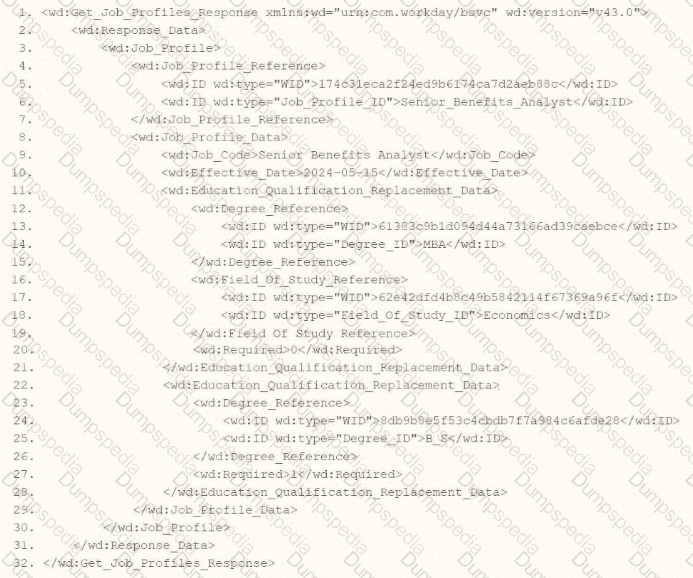
You are an integration developer and need to write XSLT to transform the output of an EIB which is making a request to the Get Job Profiles web service operation. The root template of your XSLT matches on the
What XPath syntax would be used to select the value of the wd:Job_Code element when the
wd:Job_Profile/wd:Job_Profile_Data/wd:Job_Code
wd:Job_Profile_Data[@wd:Job_Code]
wd:Job_Profile_Data/wd:Job_Code
wd:Job_Profile_Reference/wd:ID[@wd:type='Job_Profile_ID']
As an integration developer working with Workday, you are tasked with transforming the output of an Enterprise Interface Builder (EIB) that calls the Get_Job_Profiles web service operation. The provided XML shows the response from this operation, and you need to write XSLT to select the value of the
Understanding the XML and Requirement
The XML snippet provided is a SOAP response from the Get_Job_Profiles web service operation in Workday, using the namespace xmlns:wd="urn:com.workday/bsvc" and version wd:version="v43.0". Key elements relevant to the question include:
The root element is
It contains
Within
The task is to select the value of
Analysis of Options
Let’s evaluate each option based on the XML structure and XPath syntax rules:
Option A: wd:Job_Profile/wd:Job_Profile_Data/wd:Job_Code
This XPath starts from wd:Job_Profile and navigates to wd:Job_Profile_Data/wd:Job_Code. However, in the XML,
However, since the template matches
Option B: wd:Job_Profile_Data[@wd:Job_Code]
This XPath uses an attribute selector ([@wd:Job_Code]) to filter
Option C: wd:Job_Profile_Data/wd:Job_Code
This XPath starts from wd:Job_Profile_Data (a direct child of
Concise and appropriate for the context.
Directly selects the value "Senior_Benefits_Analyst" when used with
Matches the XML structure, as
This is the most straightforward and correct option for selecting the
Option D: wd:Job_Profile_Reference/wd:ID[@wd:type='Job_Profile_ID']
This XPath navigates to
The XPath wd:Job_Profile_Reference/wd:ID[@wd:type='Job_Profile_ID'] selects the
Why Option C is Correct
Option C, wd:Job_Profile_Data/wd:Job_Code, is the correct XPath syntax because:
It starts from the context node
It is concise and aligns with standard XPath navigation in XSLT, avoiding unnecessary redundancy (unlike Option A) or incorrect attribute selectors (unlike Option B).
It matches the XML structure, where
When used with
Practical Example in XSLT
Here’s how this might look in your XSLT:
xml
WrapCopy
This would output "Senior_Benefits_Analyst" for the
Verification with Workday Documentation
The Workday Pro Integrations Study Guide and SOAP API Reference (available via Workday Community) detail the structure of the Get_Job_Profiles response and how to use XPath in XSLT for transformations. The XML structure shows
Workday Pro Integrations Study Guide References
Section: XSLT Transformations in EIBs – Describes using XSLT to transform web service responses, including selecting elements with XPath.
Section: Workday Web Services – Details the Get_Job_Profiles operation and its XML output structure, including
Section: XPath Syntax – Explains how to navigate XML hierarchies in Workday XSLT, using relative paths like wd:Job_Profile_Data/wd:Job_Code from a
Workday Community SOAP API Reference – Provides examples of XPath navigation for Workday web service responses.
Option C is the verified answer, as it correctly selects the
Refer to the scenario. You are implementing a Core Connector: Worker integration to send employee data to a third-party active employee directory. The external vendor requires the following:
The Employee's Active Directory User Principal Name.
A mapping from Worker Type values to external worker type codes.
A specific filename format that includes a timestamp and sequence number.
You also need to ensure the document transformation occurs before the file is delivered to the endpoint. You must include an Employee’s Active Directory User Principal Name (generated by a Calculated Field).
How do you ensure this field is pulled into the output?
Configure an integration map.
Configure an integration field override.
Configure an integration field attribute.
Configure an integration attribute.
To surface a Calculated Field in a Core Connector: Worker (CCW) outbound, you use an Integration Field Override to substitute the connector’s default source with your calculated value. An integration map (Option A) is intended to translate or normalize code values (for example, mapping internal Worker Type codes to the vendor’s codes), not to replace the source of a field. Integration attributes (Option D) and integration field attributes (Option C) manage connector behavior and attributes, but they do not replace a field’s data source with a calculated field. Therefore, the correct method to “pull” a calculated field into the CCW output is an Integration Field Override (Option B).
Why the other elements in the scenario matter (and how they’re handled) — with exact extracts from your materials:
Mapping Worker Type to external codes → Integration Maps (supports, but not the asked action):Your deployment guides call out maintaining and using Integration System Maps for code translations. This is exactly where you’d map “Worker Type” to the external system’s codes, but it is not how you inject a calculated field into the payload.
“Maintenance of Integration System Maps”
“WORKDAY SETUP – NON STATIC MAPS” and “WORKDAY SETUP – STATIC MAPS” (table of contents for configuration of maps)
Filename requires timestamp/sequence number → Sequence Generator (supports the scenario):Your Time Tracking/PECI deployment guide explicitly includes a Sequence Generator configuration that’s used with certified connectors to build compliant, unique file names (often with timestamps and/or sequence numbers) before delivery.
“3.6 Sequence Generator” (configuration item for certified integrations used in file naming)
Transformation before delivery → Standard integration flow (transform then deliver):The same deployment materials describe document/file delivery mechanics (for example, SFTP), which occur after the integration produces/transforms the document. This supports the scenario requirement that transformation happens prior to transmission.
“4. FILE DELIVERY SERVICE … 4.4 SFTP Configuration” (document delivery occurs after the integration generates/transforms the output)
Security posture for integrations (context):For outbound/system users and secure delivery, the Workday Authentication & Security guide documents integration-appropriate authentication (e.g., X.509) and general integration security steps — relevant background for productionizing CCW but not directly affecting how to bring a calculated field into the payload.
“X509 Recommended for web services users and integrations that use an integration system user account.”
Putting it all together for the scenario:
Use Integration Field Override to point the CCW field to your Calculated Field for UPN → (Correct answer: B).
Use Integration Maps to translate Worker Type to the vendor’s codes (supports the mapping requirement).
Configure filename rules via Sequence Generator to include timestamp and sequence in the produced file name (supports the file-naming requirement).
Ensure the document transformation runs as part of the integration generation step and then deliver via SFTP (file delivery service).
References (Workday Pro: Integrations-aligned materials):
GPC_PECI_TimeTracking_DeploymentGuide_CloudPay.pdf — Sections “3.6 Sequence Generator” and “4. File Delivery Service” (delivery occurs after file generation/transform).
GPC_PECI_DeploymentGuide_CloudPay_2.9.pdf — Map configuration sections (“WORKDAY SETUP – NON STATIC MAPS”, “WORKDAY SETUP – STATIC MAPS”).
GPC_PECI_UserGuide_CloudPay_2.1.1.pdf — “Maintenance of Integration System Maps.”
Admin-Guide-Authentication-and-Security.pdf — Integration security notes, including X.509 recommendation for integrations.
Refer to the following scenario to answer the question below.
You have configured a Core Connector: Worker integration, which utilizes the following basic configuration:
• Integration field attributes are configured to output the Position Title and Business Title fields from the Position Data section.
• Integration Population Eligibility uses the field Is Manager which returns true if the worker holds a manager role.
• Transaction Log service has been configured to Subscribe to specific Transaction Types: Position Edit Event.
You launch your integration with the following date launch parameters (Date format of MM/DD/YYYY):
• As of Entry Moment: 05/25/2024 12:00:00 AM • Effective Date: 05/25/2024
• Last Successful As of Entry Moment: 05/23/2024 12:00:00 AM
• Last Successful Effective Date: 05/23/2024
To test your integration, you made a change to a worker named Jared Ellis who is assigned to the manager role for the IT Help Desk department. You use the Change Business Title related action on Jared and update the Business Title of the position to a new value. Jared Ellis' worker history shows the Title Change Event as being successfully completed with an effective date of 05/24/2024 and an Entry Moment of 05/24/2024 07:58:53 AM however Jared Ellis does not show up in your output. What configuration element would have to be modified for the integration to include Jared Ellis in the output?
Transaction log subscription
Date launch parameters
Integration Field Attributes
Integration Population Eligibility
The scenario involves a Core Connector: Worker integration configured to output Position Title and Business Title fields for workers who meet the Integration Population Eligibility criteria (Is Manager = true), with the Transaction Log service subscribed to the "Position Edit Event." The integration is launched with specific date parameters, and a test is performed by updating Jared Ellis’ Business Title using the "Change Business Title" related action. Jared is a manager, and the change is logged with an effective date of 05/24/2024 and an entry moment of 05/24/2024 07:58:53 AM. Despite this, Jared does not appear in the output. Let’s determine why and identify the configuration element that needs modification.
In Workday, the Core Connector: Worker integration uses the Transaction Log service to detect changes based on subscribed transaction types. The subscribed transaction type in this case is "Position Edit Event," which is triggered when a position is edited via the "Edit Position" business process. However, the test scenario involves a "Change Business Title" related action, which is a distinct business process in Workday. This action updates the Business Title field but does not necessarily trigger a "Position Edit Event." Instead, it generates a different event type, such as a "Title Change Event" (as noted in Jared’s worker history), depending on how the system logs the action.
The date launch parameters provided are:
As of Entry Moment: 05/25/2024 12:00:00 AM – The latest point for entry moments.
Effective Date: 05/25/2024 – The latest effective date for changes.
Last Successful As of Entry Moment: 05/23/2024 12:00:00 AM – The starting point for entry moments from the last run.
Last Successful Effective Date: 05/23/2024 – The starting point for effective dates from the last run.
Jared’s change has:
Entry Moment: 05/24/2024 07:58:53 AM – Falls between 05/23/2024 12:00:00 AM and 05/25/2024 12:00:00 AM.
Effective Date: 05/24/2024 – Falls between 05/23/2024 and 05/25/2024.
The date parameters correctly cover the time window of Jared’s change, meaning the issue is not with the date range but with the event detection logic. The Transaction Log subscription determines which events are processed by the integration. Since the subscription is set to "Position Edit Event" and the change was made via "Change Business Title" (logged as a "Title Change Event"), the integration does not recognize this event because it is not subscribed to the appropriate transaction type.
To include Jared Ellis in the output, the Transaction Log subscription must be modified to include the event type associated with the "Change Business Title" action, such as "Title Change Event" or a broader category like "Position Related Event" that encompasses both position edits and title changes. This ensures the integration captures the specific update made to Jared’s Business Title.
Let’s evaluate the other options:
B. Date launch parameters: The parameters already include Jared’s entry moment and effective date within the specified ranges (05/23/2024 to 05/25/2024). Adjusting these would not address the mismatch between the subscribed event type and the actual event triggered.
C. Integration Field Attributes: These are set to output Position Title and Business Title, and the change to Business Title is within scope. The field configuration is correct and does not need modification.
D. Integration Population Eligibility: This is set to "Is Manager = true," and Jared is a manager. This filter is functioning as intended and is not the issue.
The root cause is the Transaction Log subscription not aligning with the event type generated by the "Change Business Title" action, making A. Transaction log subscription the correct answer.
Workday Pro Integrations Study Guide References
Workday Integrations Study Guide: Core Connector: Worker – Section on "Transaction Log Configuration" explains how subscribing to specific transaction types filters the events processed by the integration.
Workday Integrations Study Guide: Change Detection – Details how different business processes (e.g., Edit Position vs. Change Business Title) generate distinct event types in the Transaction Log.
Workday Integrations Study Guide: Event Subscription – Notes the importance of aligning subscription types with the specific business actions being tested or monitored.
Which features must all XSLT files contain to be considered valid?
A template, a prefix, and a header
A root element, namespace, and at least one transformation
A header, a footer, and a namespace
A root element, namespace, and at least one template
A valid XSLT file must include the following key components:
Root Element:
Namespace Declaration: Usually xmlns:xsl="http://www.w3.org/1999/XSL/Transform "
At Least One
From W3C and Workday documentation:
“A valid XSLT file must contain a stylesheet root element, a namespace, and at least one template to be considered executable.”
Why others are incorrect:
A. Prefix and header are not structural requirements.
B. "Transformation" is vague; it's the template that implements it.
C. Headers and footers are not required or defined elements in XSLT.
You need to filter a custom report to only show workers that have been terminated after a user-prompted date.
How do you combine conditions in the filter to meet this requirement?

Worker Status is equal to the value "Terminated" OR Termination Date is greater than a value retrieved from a prompt
Worker Status is equal to the value retrieved from a prompt AND Termination Date is less than a value retrieved from a prompt.
Worker Status is equal to the value retrieved from a prompt OR Termination Date is equal to a value retrieved from a prompt.
Worker Status is equal to the value "Terminated" AND Termination Date is greater than a value retrieved from a prompt.
The requirement is to filter a custom report to show only workers terminated after a user-prompted date. In Workday, filters are defined in the Filter tab of the custom report definition, and conditions can be combined using AND/OR logic to refine the dataset. Let’s analyze the requirement and options:
Key Conditions:
Workers must be terminated, so the "Worker Status" field must equal "Terminated."
The termination must occur after a user-specified date, so the "Termination Date" must be greater than the prompted value.
Both conditions must be true for a worker to appear in the report, requiring an AND combination.
Option Analysis:
A. Worker Status is equal to the value "Terminated" OR Termination Date is greater than a value retrieved from a prompt: Incorrect. Using OR means the report would include workers who are terminated (regardless of date) OR workers with a termination date after the prompt (even if not terminated), which doesn’t meet the strict requirement of terminated workers after a specific date.
B. Worker Status is equal to the value retrieved from a prompt AND Termination Date is less than a value retrieved from a prompt: Incorrect. Worker Status shouldn’t be a prompted value (it’s fixed as "Terminated"), and "less than" would show terminations before the date, not after.
C. Worker Status is equal to the value retrieved from a prompt OR Termination Date is equal to a value retrieved from a prompt: Incorrect. Worker Status shouldn’t be prompted, and "equal to" limits the filter to exact matches, not "after" the date. OR logic also broadens the scope incorrectly.
D. Worker Status is equal to the value "Terminated" AND Termination Date is greater than a value retrieved from a prompt: Correct. This ensures workers are terminated (fixed value) AND their termination date is after the user-entered date, precisely meeting the requirement.
Implementation:
In the custom report’s Filter tab, add two conditions:
Field: Worker Status, Operator: equals, Value: "Terminated".
Field: Termination Date, Operator: greater than, Value: Prompt for Date (configured as a report prompt).
Set the logical operator between conditions to AND.
Test with a sample date to verify only terminated workers after that date appear.
References from Workday Pro Integrations Study Guide:
Workday Report Writer Fundamentals: Section on "Creating and Managing Filters" details combining conditions with AND/OR logic and using prompts.
Integration System Fundamentals: Notes how filtered reports support integration data sources with dynamic user inputs.
Refer to the following scenario to answer the question below.
You have been asked to build an integration using the Core Connector: Worker template and should leverage the Data Initialization Service (DIS). The integration will be used to export a full file (no change detection) for employees only and will include personal data.
What configuration is required to ensure that only employees, and not contingent workers, are output by this integration?
Configure the Integration Population Eligibility.
Configure a map for worker type in the Integration Maps.
Configure worker type in the Integration Field Attributes.
Configure eligibility in the Integration Field Overrides.
The scenario involves a Core Connector: Worker integration using DIS to export a full file of personal data, restricted to employees only (excluding contingent workers). In Workday, the Worker business object includes both employees and contingent workers, so a filter is needed to limit the population. Let’s explore the configuration:
Requirement:Ensure the integration outputs only employees, not contingent workers. This is a population-level filter, not a field transformation or override.
Integration Population Eligibility:In Core Connectors, the Configure Integration Population Eligibility related action defines which workers are included in the integration’s dataset. You can set eligibility rules, such as "Worker Type equals Employee" (or exclude "Contingent Worker"), to filter the population before data is extracted. For a full file export (no change detection), this ensures the entire output is limited to employees.
Option Analysis:
A. Configure the Integration Population Eligibility: Correct. This filters the worker population to employees only, aligning with the requirement at the dataset level.
B. Configure a map for worker type in the Integration Maps: Incorrect. Integration Maps transform field values (e.g., "Employee" to "EMP"), not filter the population of workers included in the extract.
C. Configure worker type in the Integration Field Attributes: Incorrect. Integration Field Attributes refine how a field is output (e.g., phone type), not the overall population eligibility.
D. Configure eligibility in the Integration Field Overrides: Incorrect. Integration Field Overrides replace field values with custom data (e.g., a calculated field), not define the population of workers.
Implementation:
Edit the Core Connector: Worker integration.
Use the related action Configure Integration Population Eligibility.
Add a rule: "Worker Type equals Employee" (or exclude "Contingent Worker").
Save and test to ensure only employee data is exported.
References from Workday Pro Integrations Study Guide:
Core Connectors & Document Transformation: Section on "Configuring Integration Population Eligibility" explains filtering the worker population for outbound integrations.
Integration System Fundamentals: Discusses population scoping in Core Connectors to meet specific export criteria.
How do you initially upload the XSLT file to a Document Transformation integration system?
From the Related Action on the Document Transformation, select Configure Integration Attachment Service.
From the Related Action on the Document Transformation, select Configure Integration Attributes.
In the Global Workday Search bar, run the Edit Integration Attachment Service task.
In the Global Workday Search bar, run the Edit Integration Service Attachment task.
To upload an XSLT file to a Document Transformation integration system, you use the Configure Integration Attachment Service.
As per Workday documentation:
“The Configure Integration Attachment Service option on the Related Actions menu allows you to attach and manage XSLT files or other transformation documents used in Document Transformation integrations.”
This is the initial and correct method to upload the XSLT used for transforming incoming or outgoing XML.
Why the others are incorrect:
B. Configure Integration Attributes configures integration behavior, not attachments.
C and D reference invalid or misnamed tasks; they are not valid Workday tasks for XSLT upload.
When creating an XSLT file to transform the XML output of an EIB, you must have the XSL namespace. What other namespace(s) do you need to process any part of the source XML file?
The most commonly used namespace of the source XML document.
All namespaces that are a part of the source XML document.
Either the ETV or XTT namespace based on the type of output file desired.
No namespaces from the source XML document are needed.
When writing XSLT to transform an XML document, you must declare and reference all XML namespaces used in the source XML.
“To accurately access and transform nodes using XPath, every namespace in the source document must be declared in the XSLT stylesheet.”
This ensures that XPath expressions correctly match the fully qualified elements, especially when multiple namespaces are in use.
Why the others are incorrect:
A (most commonly used) would be incomplete.
C (ETV/XTT) are specific Workday terminologies but don't replace namespace declarations.
D is incorrect; namespaces are required to avoid XPath resolution failures.
You are creating an outbound connector using the Core Connector: Job Postings template. The vendor has provided the following specification for worker subtype values:
The vendor has also requested that any output file have the following format "CC_Job_Postings_dd-mm-yy_#.xml". Where the dd is the current day at runtime, mm is the current month at runtime, yy is the last two digits of the current year at runtime, and # is the current value of the sequencer at runtime. What configuration step(s) must you complete to meet the vender requirements?
• Enable the Sequence Generator Field Attribute • Configure the Sequence Generator • Configure the Worker Sub Type Integration Mapping leaving the default value blank
• Enable the Integration Mapping Field Attribute • Configure the Worker Sub Type Integration Mapping leaving the default value blank • Configure the Sequence Generator
• Enable the Integration Mapping Integration Service • Configure the Worker Sub Type Integration Mapping and include a default value of "U" • Configure the Sequence Generator
• Enable the Sequence Generator Integration Service • Configure the Sequence Generator • Configure the Worker Sub Type Integration Mapping and include a default value of "U"
This question involves configuring an outbound connector using the Core Connector: Job Postings template in Workday Pro Integrations. We need to meet two specific vendor requirements:
Map worker subtype values according to the provided table (e.g., Seasonal (Fixed) = "S", Regular = "R", Contractor = "C", Consultant = "C", and any other value = "U").
Format the output file name as "CC_Job_Postings_dd-mm-yy_#.xml", where:
"dd" is the current day at runtime,
"mm" is the current month at runtime,
"yy" is the last two digits of the current year at runtime,
"#" is the current value of the sequencer at runtime.
Let’s break down the requirements and evaluate each option to determine the correct configuration steps.
Understanding the Requirements
1. Worker Subtype Mapping
The vendor provides a table for worker subtype values:
Internal Seasonal (Fixed) maps to "S"
Internal Regular maps to "R"
Internal Contractor maps to "C"
Internal Consultant maps to "C"
Any other value should be assigned "U"
In Workday, worker subtypes are typically part of the worker data, and for integrations, we use integration mappings to transform these values into the format required by the vendor. The integration mapping allows us to define how internal Workday values (e.g., worker subtypes) map to external values (e.g., "S", "R", "C", "U"). If no specific mapping exists for a value, we need to set a default value of "U" for any unmatched subtypes, as specified.
This mapping is configured in the integration system’s "Integration Mapping" or "Field Mapping" settings, depending on the template. For the Core Connector: Job Postings, we typically use the "Integration Mapping" feature to handle data transformations, including setting default values for unmapped data.
2. Output File Name Format
The vendor requires the output file to be named "CC_Job_Postings_dd-mm-yy_#.xml", where:
"CC_Job_Postings" is a static prefix,
"dd-mm-yy" represents the current date at runtime (day, month, last two digits of the year),
"#" is the current value from a sequence generator (sequencer) at runtime.
In Workday, file names for integrations are configured in the "File Utility" or "File Output" settings of the integration. To achieve this format:
The date portion ("dd-mm-yy") can be dynamically generated using Workday’s date functions or runtime variables, often configured in the File Utility’s "Filename" field with a "Determine Value at Runtime" setting.
The sequence number ("#") requires a sequence generator, which is enabled and configured to provide a unique incrementing number for each file. Workday uses the "Sequence Generator" feature for this purpose, typically accessed via the "Create ID Definition / Sequence Generator" task.
The Core Connector: Job Postings template supports these configurations, allowing us to set filename patterns in the integration’s setup.
Evaluating Each Option
Let’s analyze each option step by step, ensuring alignment with Workday Pro Integrations best practices and the vendor’s requirements.
Option A:
• Enable the Sequence Generator Field Attribute
• Configure the Sequence Generator
• Configure the Worker Sub Type Integration Mapping leaving the default value blank
Analysis:
Sequence Generator Configuration: Enabling the "Sequence Generator Field Attribute" and configuring the sequence generator is partially correct for the file name’s "#" (sequencer) requirement. However, "Sequence Generator Field Attribute" is not a standard term in Workday; it might refer to enabling a sequence generator in a field mapping, but this is unclear and likely incorrect. Sequence generators are typically enabled as an "Integration Service" or configured in the File Utility, not as a field attribute.
Worker Subtype Mapping: Configuring the worker subtype integration mapping but leaving the default value blank is problematic. The vendor requires any unmapped value to be "U," so leaving it blank would result in missing or null values, failing to meet the requirement.
Date in Filename: This option doesn’t mention configuring the date ("dd-mm-yy") in the filename, which is critical for the "CC_Job_Postings_dd-mm-yy_#.xml" format.
Conclusion: This option is incomplete and incorrect because it doesn’t address the default "U" for unmapped subtypes and lacks date configuration for the filename.
Option B:
• Enable the Integration Mapping Field Attribute
• Configure the Worker Sub Type Integration Mapping leaving the default value blank
• Configure the Sequence Generator
Analysis:
Sequence Generator Configuration: Configuring the sequence generator addresses the "#" (sequencer) in the filename, which is correct for the file name requirement.
Worker Subtype Mapping: Similar to Option A, leaving the default value blank for the worker subtype mapping fails to meet the vendor’s requirement for "U" as the default for unmapped values. This would result in errors or null outputs, which is unacceptable.
Date in Filename: Like Option A, there’s no mention of configuring the date ("dd-mm-yy") in the filename, making this incomplete for the full file name format.
Integration Mapping Field Attribute: This term is ambiguous. Workday uses "Integration Mapping" or "Field Mapping" for data transformations, but "Field Attribute" isn’t standard for enabling mappings. This suggests a misunderstanding of Workday’s configuration.
Conclusion: This option is incomplete and incorrect due to the missing default "U" for worker subtypes and lack of date configuration for the filename.
Option C:
• Enable the Integration Mapping Integration Service
• Configure the Worker Sub Type Integration Mapping and include a default value of "U"
• Configure the Sequence Generator
Analysis:
Sequence Generator Configuration: Configuring the sequence generator is correct for the "#" (sequencer) in the filename, addressing part of the file name requirement.
Worker Subtype Mapping: Including a default value of "U" for the worker subtype mapping aligns perfectly with the vendor’s requirement for any unmapped value to be "U." This is a strong point.
Date in Filename: This option doesn’t mention configuring the date ("dd-mm-yy") in the filename, which is essential for the "CC_Job_Postings_dd-mm-yy_#.xml" format. Without this, the file name requirement isn’t fully met.
Integration Mapping Integration Service: Enabling the "Integration Mapping Integration Service" is vague. Workday doesn’t use this exact term; instead, integration mappings are part of the integration setup, not a separate service. This phrasing suggests confusion or misalignment with Workday terminology.
Conclusion: This option is partially correct (worker subtype mapping) but incomplete due to the missing date configuration for the filename and unclear terminology.
Option D:
• Enable the Sequence Generator Integration Service
• Configure the Sequence Generator
• Configure the Worker Sub Type Integration Mapping and include a default value of "U"
Analysis:
Sequence Generator Configuration: Enabling the "Sequence Generator Integration Service" and configuring the sequence generator addresses the "#" (sequencer) in the filename. While "Sequence Generator Integration Service" isn’t a standard term, it likely refers to enabling and configuring the sequence generator functionality, which is correct. In Workday, this is done via the "Create ID Definition / Sequence Generator" task and linked in the File Utility.
Worker Subtype Mapping: Configuring the worker subtype integration mapping with a default value of "U" meets the vendor’s requirement for any unmapped value, ensuring "S," "R," "C," or "U" is output as specified in the table. This is accurate and aligns with Workday’s integration mapping capabilities.
Date in Filename: Although not explicitly mentioned in the steps, Workday’s Core Connector: Job Postings template and File Utility allow configuring the filename pattern, including dynamic date values ("dd-mm-yy"). The filename "CC_Job_Postings_dd-mm-yy_#.xml" can be set in the File Utility’s "Filename" field with "Determine Value at Runtime," using date functions and the sequence generator. This is a standard practice and implied in the configuration, making this option complete.
Conclusion: This option fully addresses both requirements: worker subtype mapping with "U" as the default and the file name format using the sequence generator and date. The terminology ("Sequence Generator Integration Service") is slightly non-standard but interpretable as enabling/configuring the sequence generator, which is correct in context.
Final Verification
To confirm, let’s summarize the steps for Option D and ensure alignment with Workday Pro Integrations:
Enable the Sequence Generator Integration Service: This likely means enabling and configuring the sequence generator via the "Create ID Definition / Sequence Generator" task, then linking it to the File Utility for the "#" in the filename.
Configure the Sequence Generator: Set up the sequence generator to provide incremental numbers, ensuring each file has a unique "#" value.
Configure the Worker Sub Type Integration Mapping with a default value of "U": Use the integration mapping to map Internal Seasonal (Fixed) to "S," Regular to "R," Contractor to "C," Consultant to "C," and set "U" as the default for any other value. This is done in the integration’s mapping configuration.
Filename Configuration (Implied): In the File Utility, set the filename to "CC_Job_Postings_dd-mm-yy_#.xml," where "dd-mm-yy" uses Workday’s date functions (e.g., %d-%m-%y) and "#" links to the sequence generator.
This matches Workday’s documentation and practices for the Core Connector: Job Postings template, ensuring both requirements are met.
Why Not the Other Options?
Options A and B fail because they leave the default worker subtype value blank, not meeting the "U" requirement.
Option C fails due to missing date configuration for the filename and unclear terminology ("Integration Mapping Integration Service").
Option D is the only one that fully addresses both the worker subtype mapping (with "U" default) and implies the filename configuration, even if the date setup isn’t explicitly listed (it’s standard in Workday).
Supporting Documentation
The reasoning is based on Workday Pro Integrations best practices, including:
Workday Tutorial: Activity Creating Unique Filenames from EIB-Out Integrations – Details on using sequence generators for filenames.
Workday Tutorial: EIB Features – Explains integration mappings and default values.
Get_Sequence_Generators Operation Details – Workday API documentation on sequence generators.
Workday Advanced Studio Tutorial – Covers Core Connector templates and file name configurations.
r/workday Reddit Post: How to Create a New Sequence Generator for Filename for EIB – Community insights on sequence generators.
When creating an ISU, what should you do to ensure the user only authenticates via web services?
Choose a constrained security group.
Select the Do Not Allow UI Sessions checkbox.
Update the session timeout minutes.
Generate a random password.
When creating an Integration System User (ISU) in Workday, the goal is often to ensure that the user is restricted to performing tasks via web services (e.g., API calls or integrations) and cannot log into the Workday user interface (UI). This is a critical security measure to limit the ISU’s access to only what is necessary for integration purposes, adhering to the principle of least privilege. Let’s evaluate each option provided in the question to determine the correct approach based on Workday’s functionality and best practices as outlined in official documentation and the Workday Pro Integrations program.
Option A: Choose a constrained security group.In Workday, security groups define the permissions and access levels for users, including ISUs. There are two types of Integration System Security Groups (ISSGs): constrained and unconstrained. A constrained ISSG limits access to specific organizations or data scopes, while an unconstrained ISSG provides broader access across the tenant. While choosing a constrained security group can enhance security by limiting the scope of data the ISU can access, it does not directly control whether the ISU authenticates via web services or the UI. The type of security group affects data access permissions, not the authentication method or UI access. Therefore, this option does not address the requirement of ensuring authentication only via web services.
Option B: Select the Do Not Allow UI Sessions checkbox.When creating an ISU in Workday, the "Create Integration System User" task presents an option labeled "Do Not Allow UI Sessions." Selecting this checkbox explicitly prevents the ISU from logging into the Workday UI using its credentials. This setting ensures that the ISU can only authenticate and operate through programmatic means, such as web service calls (e.g., SOAP or REST APIs), which is precisely the intent of the question. This is a standard security practice recommended by Workday to isolate integration activities from interactive user sessions, reducing the risk of misuse or unauthorized access through the UI. This option directly aligns with the requirement and is the correct answer.
Option C: Update the session timeout minutes.The "Session Timeout Minutes" field in the ISU creation task determines how long an ISU’s session remains active before it expires. By default, this is set to 0, meaning the session does not expire, which is suitable for integrations that require continuous operation without interruption. Updating this value (e.g., setting it to a specific number of minutes) would cause the session to time out after that period, potentially disrupting long-running integrations. However, this setting pertains to session duration, not the method of authentication or whether UI access is allowed. It does not prevent the ISU from logging into the UI or ensure that authentication occurs only via web services, making this option irrelevant to the question.
Option D: Generate a random password.Generating a random password for the ISU is a good security practice to ensure the credentials are strong and not easily guessable. However, the password itself does not dictate how the ISU authenticates or whether it can access the UI. A random password enhances security but does not inherently restrict the ISU to web service authentication. Without selecting "Do Not Allow UI Sessions," the ISU could still log into the UI with that password, assuming no other restrictions are applied. Thus, this option does not fulfill the requirement of ensuring authentication only via web services.
Why Option B is Correct
The "Do Not Allow UI Sessions" checkbox is a specific configuration in the ISU setup process that directly enforces the restriction of authentication to web services. This setting is part of Workday’s security framework for integrations, ensuring that ISUs—designed as non-human accounts for programmatic access—cannot be used interactively. This aligns with Workday’s best practices for securing integrations, as outlined in the Workday Pro Integrations Study Guide and related documentation. For example, when an ISU is created with this checkbox selected, any attempt to log into the Workday UI with its credentials will fail, while web service requests (e.g., via SOAP or REST APIs) will succeed, assuming proper permissions are granted via an ISSG.
Practical Application
To implement this in Workday:
Log into your Workday tenant with administrative privileges.
Search for and select the "Create Integration System User" task.
Enter a username and password for the ISU.
Check the "Do Not Allow UI Sessions" checkbox.
Leave "Session Timeout Minutes" at 0 (default) to avoid session expiration during integrations.
Save the ISU and assign it to an appropriate ISSG (constrained or unconstrained, depending on the integration’s needs).
This configuration ensures the ISU is locked to web service authentication, meeting the question’s objective.
Verification with Workday Documentation
The Workday Pro Integrations Study Guide emphasizes securing ISUs by restricting them to integration-specific tasks. The "Do Not Allow UI Sessions" option is highlighted as a key control for preventing UI access, ensuring that ISUs operate solely through web services. This is also consistent with broader Workday security training materials, such as those available on Workday Community, which stress isolating integration accounts from human user activities.
Workday Pro Integrations Study Guide References
Section: Integration Security Fundamentals – Discusses the role of ISUs and the importance of restricting their access to programmatic interactions.
Section: Configuring Integration System Users – Details the "Create Integration System User" task, including the "Do Not Allow UI Sessions" checkbox as a security control.
Section: Best Practices for Integration Security – Recommends using this setting to enforce least privilege and protect the tenant from unauthorized UI access by integration accounts.
Refer to the following scenario to answer the question below. Your integration has the following runs in the integration events report (Date format of MM/DD/YYYY):
Run #1
• Core Connector: Worker Integration System was launched on May 15, 2024 at 3:00:00 AM.
• As of Entry Moment: 05/15/2024 3:00:00 AM
• Effective Date: 05/15/2024
• Last Successful As of Entry Moment: 05/01/2024 3:00:00 AM
• Last Successful Effective Date: 05/01/2024
Run #2
• Core Connector: Worker Integration System was launched on May 31, 2024 at 3:00:00 AM.
• As of Entry Moment: 05/31/2024 3:00:00 AM
• Effective Date: 05/31/2024
• Last Successful As of Entry Moment: 05/15/2024 3:00:00 AM
• Last Successful Effective Date: 05/15/2024 On May 13, 2024 Brian Hill receives a salary increase. The new salary amount is set to $90,000.00 with an effective date of April 30,2024. Which of these runs will include Brian Hill's compensation change?
Brian Hill will be included in both integration runs.
Brian Hill will only be included in the second integration run.
Brian Hill will only be included in the first integration run.
Brian Hill will be excluded from both integration runs.
The scenario involves a Core Connector: Worker integration with two runs detailed in the integration events report. The goal is to determine whether Brian Hill’s compensation change, effective April 30, 2024, and entered on May 13, 2024, will be included in either of the runs based on their date launch parameters. Let’s analyze each run against the change details to identify the correct answer.
In Workday, the Core Connector: Worker integration in incremental mode (as indicated by the presence of "Last Successful" parameters) processes changes based on the Transaction Log, filtering them by the Entry Moment (when the change was entered) and Effective Date (when the change takes effect). The integration captures changes where:
The Entry Moment falls between the Last Successful As of Entry Moment and the As of Entry Moment, and
The Effective Date falls between the Last Successful Effective Date and the Effective Date.
Brian Hill’s compensation change has:
Entry Moment: 05/13/2024 (time not specified, so we assume it occurs at some point during the day, before or up to 11:59:59 PM).
Effective Date: 04/30/2024.
Analysis of Run #1
Launch Date: 05/15/2024 at 3:00:00 AM
As of Entry Moment: 05/15/2024 3:00:00 AM – The latest point for when changes were entered.
Effective Date: 05/15/2024 – The latest effective date for changes.
Last Successful As of Entry Moment: 05/01/2024 3:00:00 AM – The starting point for entry moments.
Last Successful Effective Date: 05/01/2024 – The starting point for effective dates.
For Run #1 to include Brian’s change:
The Entry Moment (05/13/2024) must be between 05/01/2024 3:00:00 AM and 05/15/2024 3:00:00 AM. Since 05/13/2024 falls within this range (assuming the change was entered before 3:00:00 AM on 05/15/2024, which is reasonable unless specified otherwise), this condition is met.
The Effective Date (04/30/2024) must be between 05/01/2024 (Last Successful Effective Date) and 05/15/2024 (Effective Date). However, 04/30/2024 is before 05/01/2024, so this condition is not met.
Since the effective date of Brian’s change (04/30/2024) precedes the Last Successful Effective Date (05/01/2024), Run #1 will not include this change. In incremental mode, Workday excludes changes with effective dates prior to the last successful effective date, as those are assumed to have been processed in a prior run (before Run #1’s baseline of 05/01/2024).
Analysis of Run #2
Launch Date: 05/31/2024 at 3:00:00 AM
As of Entry Moment: 05/31/2024 3:00:00 AM – The latest point for when changes were entered.
Effective Date: 05/31/2024 – The latest effective date for changes.
Last Successful As of Entry Moment: 05/15/2024 3:00:00 AM – The starting point for entry moments.
Last Successful Effective Date: 05/15/2024 – The starting point for effective dates.
For Run #2 to include Brian’s change:
The Entry Moment (05/13/2024) must be between 05/15/2024 3:00:00 AM and 05/31/2024 3:00:00 AM. However, 05/13/2024 is before 05/15/2024 3:00:00 AM, so this condition is not met.
The Effective Date (04/30/2024) must be between 05/15/2024 (Last Successful Effective Date) and 05/31/2024 (Effective Date). Since 04/30/2024 is before 05/15/2024, this condition is also not met.
In Run #2, the Entry Moment (05/13/2024) precedes the Last Successful As of Entry Moment (05/15/2024 3:00:00 AM), meaning the change was entered before the starting point of this run’s detection window. Additionally, the Effective Date (04/30/2024) is well before the Last Successful Effective Date (05/15/2024). Both filters exclude Brian’s change from Run #2.
Conclusion
Run #1: Excluded because the effective date (04/30/2024) is before the Last Successful Effective Date (05/01/2024).
Run #2: Excluded because the entry moment (05/13/2024) is before the Last Successful As of Entry Moment (05/15/2024 3:00:00 AM) and the effective date (04/30/2024) is before the Last Successful Effective Date (05/15/2024).
Brian Hill’s change would have been processed in an earlier run (prior to May 1, 2024) if the integration was running incrementally before Run #1, as its effective date (04/30/2024) predates both runs’ baselines. Given the parameters provided, neither Run #1 nor Run #2 captures this change, making D. Brian Hill will be excluded from both integration runs the correct answer.
Workday Pro Integrations Study Guide References
Workday Integrations Study Guide: Core Connector: Worker – Section on "Incremental Processing" explains how changes are filtered based on entry moments and effective dates relative to the last successful run.
Workday Integrations Study Guide: Launch Parameters – Details how "Last Successful As of Entry Moment" and "Last Successful Effective Date" define the starting point for detecting new changes, excluding prior transactions.
Workday Integrations Study Guide: Change Detection – Notes that changes with effective dates before the last successful effective date are assumed processed in earlier runs and are skipped in incremental mode.
TESTED 07 Dec 2025